How To Redirect Your WordPress Site from HTTP to HTTPS
By Douglas Moore
Last Updated On
April 14, 2020
The internet has arguably made a lot of things more convenient for us. From paying bills, to online shopping, academic research, and entertainment – there’s little you can’t do with a computer and an internet connection.
However, this also means that we’re sharing a lot of personal data with websites, including login details (usernames and passwords) and credit card information. Naturally, when we share this information online, we expect the websites we use to keep it secure.
This means that website owners have a responsibility to ensure that their site visitors’ or customers’ data is kept safe. So, if you’re a website owner, you also share this duty!
One of the basic ways to make your site more safe and secure is by migrating toHTTPS from HTTP. In this article, we’ll go over what makes HTTPS a better choice and how you can redirect your WordPress website from HTTP to HTTPS.
What Is HTTPS and Why You Should Use It
HTTPS stands for Hypertext Transport Protocol Secure. It’s an update on HTTP, which lacks the level of security that comes with HTTPS. HTTPS uses SSL (Secure Socket Layer), i.e. TLS (Transport Layer Security) certificates to ensure a secure connection between the browser and the website.
So basically, any information exchanged between the user and the website gets encrypted, so that it can’t be stolen and misused by hackers, even if they manage to intercept the traffic.
A good way to determine if the website you’re visiting runs on HTTPS is by checking the URL address line. Most of the time, you won’t directly see the prefix before the domain.
This is what you’ll see in the URL address line on our website
The first sign that a website uses HTTPS is the padlock before the domain. The padlock is a sign of a secure connection, i.e. a HTTPS connection. To test if a site does indeed run on HTTPS, simply select the URL address, and then click at the end (after the com). Once you click, the address will appear with the type of hypertext protocol that it uses, like so:
An example of a website that runs on HTTPS
Once you click at the end of the URL address after selecting it, you’ll be able to see if a website runs on HTTPS.
Why You Need HTTPS For Your Website
As we already mentioned, HTTPS comes with significantly heightened security in comparison to HTTP. Here’s an overview of other perks you’d get when you redirect your WordPress website to HTTPS:
HTTPS is more secure since it requires a TLS handshake for authentication. So, your site visitors’ data will be safe! Plus, they’ll feel confident about using your website every time they see the padlock next to the URL address. This is likely to improve your conversions and sales.
In fact, the new HTTP/2 protocol – which enhances site performance and increases page loading speed – requires HTTPS to run. So, if you want to optimize your site with the HTTP/2 protocol, you’ll definitely need to migrate to HTTPS.
When someone visits a HTTPS website while coming from another HTTPS website, they have a more accurate referral data in Google Analytics. By contrast, if someone visits a HTTP website from a HTTPS website, most of this referral data will be lost in the process. So, to improve your referral data, migrate to HTTPS!
Now that you know the benefits of redirecting your WordPress website from HTTP to HTTPS, let’s take a look at how to do it.
How to Redirect Your WordPress Website from HTTP to HTTPS
There are a couple of easy steps in the process of redirecting your WordPress website from HTTP to HTTPS. Basically, the process is:
Back-up your website.
Activate your TLS certificate.
Update the links to the pages on your WordPress.
Edit your .htaccess/config file.
If you’re not feeling comfortable with handling any code, you can temporarily use a WordPress plugin, such as Really Simple SSL. However, we don’t recommend this as a permanent solution. Although Really Simple SSL works great, a plugin is an additional layer that can cause bugs and problems in the future. Still, we’ll also go over how you can use a plugin as a temporary solution to redirect your WordPress website from HTTP to HTTPS.
Step 1: Back-Up Your Website
The first step before any and all website-wide changes is backing up your website. We’ll be making changes to the .htaccess file of your website, and changing other important settings that if done wrong, can cause some temporary chaos.
So, before doing anything, make sure to back-up your website!
Step 2: Activate Your TLS Certificate
First of all, does your host provide you with free SSL/TLS certificates? (We do.) It’s super important to have a host that does. A TLS certificate is website security 101!
If your host does provide free TLS certificates, they most likely support Let’s Encrypt. Let’s Encrypt is a free, automated, and open certificate authority.
You can use Let’s Encrypt to get and implement your TLS certificate
Once you have this, you can access Certbot, which will give you all the information you need on how to implement Let’s Encrypt on your website server based on which operating system and web server you’re using.
Step 3: Update the Links on Your WordPress Website
Updating the Link to Your Admin Area
The first thing to do is update the link to your WordPress admin dashboard.
To do this, you’ll need to connect to your server via SFTP client.
Next, you’ll need to find the wp-config.php file. Open it in any code or text editor (like Notepad). Add this line of code anywhere before the end (before it says That’s all, stop editing!)
define(‘FORCE_SSL_ADMIN’, true);
Then, save the file, and reupload it back into the WordPress root folder.
Now, try to access your WordPress admin dashboard. You should be able to see the padlock – which means your connection is running over HTTPS and is secure!
Updating the Links to the Pages On Your Website
Your next step will be updating the URL address links to the various pages of your website.
To begin with, update the site address. Go to Settings > General.
Find your website address URL. If the link was http://www.domain.com up to now, add that important s and turn it into https://www.domain.com, like so:
Change your website URL to begin with HTTPS rather than HTTP
Then, click on Save Changes.
After you’ve updated this part, you should go over the rest of the links to the various pages, content, and media files (such as images) of your website. Make sure all the URLs run on HTTPS rather than HTTP.
Step 4: Edit Your Server File
The next step will be editing your .htaccess or NGINX config file so as to redirect HTTP to HTTPS using the 301 redirects.
If Your Server Runs NGINX
Which file in your server you need to edit will vary depending on whether your server runs NGINX or Apache.
How to redirect HTTPS on NGINX
If your server runs NGINX, you’ll need to connect to it via SFTP client and add the following code to your config file:
If your server runs Apache, you can redirect your WordPress website to HTTPS by adding code to the .htaccess file.
How to redirect your WordPress website to HTTPS on Apache
You can access the .htaccess file by connecting to your sever via SFTP client. If you can’t see the file, click on show hidden files.
Once you’ve opened the file, copy the following code inside, then save it:
RewriteEngine On RewriteCond %{HTTPS} off RewriteRule ^(.*)$ https://%{HTTP_HOST}%{REQUEST_URI} [L,R=301]
Step 5: Test and Run!
After updating all the links on your WordPress website and changing the appropriate files in your WordPress root folder, a good way to check how well you’ve implemented TLS security is running your website through an SSL Test like the one offered by Qualys.
This test will detect the TLS certificates on your website, and tell you if there’s anything you can improve about your security.
Next, it’s time to check if you’ve missed anything – like if you forgot to redirect a certain piece of content with a new URL address that includes HTTPS. Perhaps when you were updating the page links, you forgot to make sure that a certain image file runs on HTTPS?
In any case, there’s another awesome website test tool you can use – SSL Check. SSL Check tests your entire website to see if there’s any piece of content that’s left insecure.
Once that’s done, your update site is ready to go live!
Alternative: Using a WordPress Plugin
If you don’t feel comfortable doing all this coding yourself, you can use a WordPress plugin such as Really Simple SSL to redirect your WordPress website from HTTP to HTTPS.
The Really Simple SSL plugin is an easy way to redirect HTTP to HTTPS
As we mentioned, this is more of a temporary solution. You can use this plugin, and contact your web host in the meantime. They can do the coding for you in the .htaccess or config file, while the plugin does most of the work of updating the various URL address links from your WordPress admin dashboard.
So, how can you use Really Simple SSL to redirect your site from HTTP to HTTPS? It’s, uh, actually really simple. The only preliminary work you’ll have to do is get your SSL certificate – which, as we already mentioned, is easily available and free.
Just install and activate the plugin, and then click on Go ahead, activate SSL. That’s it! With that simple command, this WordPress plugin will do the following bidding for you:
Redirects incoming hTTPS requests from HTTP to HTTPS. As we mentioned, a plugin can even do the job inside your server files, if it has the right permissions.
Updates your WordPress site URL and home URL to run on HTTPS.
Automatically updates all insecure content URLs – changes every HTTP to an HTTPS address.
That’s pretty cool, right? Plus, the plugin is regularly kept up-to-date by the developer, so even as a temporary solution, it’s kept quite smooth and tidy!
The internet has arguably made a lot of things more convenient for us. From paying bills, to online shopping, academic research, and entertainment – there’s little you can’t do with a computer and an internet connection. However, this also…
When a visitor opens your WordPress website, their browser displays its content by fetching it from top to bottom. If it comes across JavaScript, it will stop retrieving the content until it fully loads and parses the JavaScript file on the…
Since Google’s speed update in July 2018, speed has become an important factor in website rankings on mobile searches. In fact, if you’re running your own website, you probably already know that having a fast-loading website is important both…
3 Ways to Defer Parsing of JavaScript on Your WordPress Website
By Douglas Moore
Last Updated On
April 14, 2020
When a visitor opens your WordPress website, their browser displays its content by fetching it from top to bottom. If it comes across JavaScript, it will stop retrieving the content until it fully loads and parses the JavaScript file on the page. But JavaScript files sometimes take longer to load than simpler content like text or optimized images.
What this means in short, is that JavaScript files can slow down the loading of your website, in turn frustrating your visitors and potentially lowering your SEO rankings.
Now before you start worrying, there’s an easy way to fix this, and it’s by deferring the parsing of JavaScript. We’ll walk you through what it means to defer parsing of JavaScript and how you can do it, both with and without WordPress plugins.
What Does It Mean to Defer Parsing of JavaScript?
First off, let’s note that there’s nothing wrong with using JavaScript. In fact, it’s a great idea! JavaScript files allow your website to have complex features that enhance its look and functionality, therefore improving the user experience. To give you a better idea, keep in mind that every time a web page displays more than static information, like content updates, maps, animated graphics, or live chat, JavaScript is at work.
However, JavaScript files come with a more complex code and the functionalities they offer weigh more than simpler content on your web page. As we mentioned, once the browser reaches the JavaScript, it stops loading the rest of the page until it’s done loading the JavaScript file.
Now, how does this mess with your SEO rankings and frustrate your site visitors? Well, speed is an important factor in Google’s SEO rankings, especially on mobile. As for your website visitors, if your site loads slowly they may simply leave it, and if you’re running an online business this could cost you sales.
So, how can deferring parsing of JavaScript help fix this? To defer parsing of JavaScript basically means to delay the loading, i.e. parsing of JavaScript until the rest of your website’s main content has loaded. Your website will be swiftly displayed in the visitor’s browser, so they’ll be able to view and interact with the page’s content without waiting for the JavaScript file to download. This leaves the JavaScript file to load at the end, once all the lighter content is already up and running. When JavaScript parsing is deferred, it won’t have the same negative impact we talked about in slowing down your web page.
Do You Need to Defer Parsing of JavaScript on Your WordPress Website?
A simple way to figure out if you need to defer parsing of JavaScript – if you haven’t already found this to be the case – is to run your website through a speed testing tool, like Google PageSpeed Insights or GTmetrix. (Maybe you’ve already done this, and that’s why you’re here!) These pages allow you to test the loading speed of your website and figure out what you can do to speed it up.
Once you run your website through a speed testing tool, you’ll get a list of the various factors that may be slowing down your website, such as too many redirects or un-optimized images. One of the high-priority factors that come up is deferring parsing of JavaScript files.
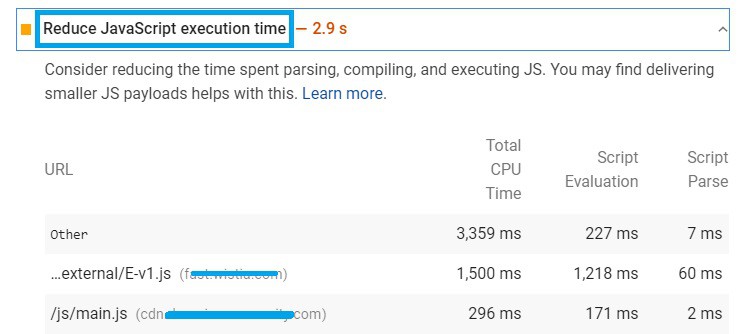
Here’s an example of what this looks like in Google PageSpeed Insights:
Google PageSpeed Insights is a great tool to check the loading speed of your website
In this example, one of the tabs that comes up with suggestions on how you can improve loading time is Reduce JavaScript execution time. PageSpeed Insights has estimated that by deferring parsing of JavaScript, the loading time of the tested website can be reduced by 2.9 seconds – and that’s a lot in loading time. The tool provides you with detailed information on the different URLs and JavaScript files that are slowing down your site, so we recommend you using it.
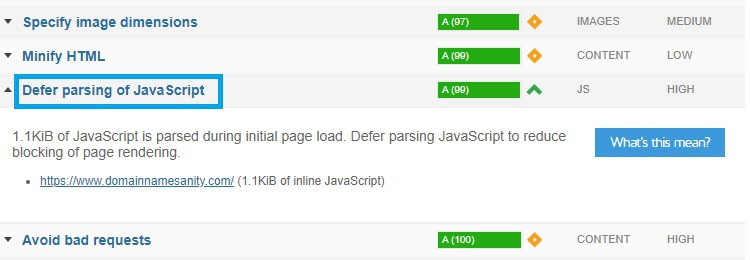
Here’s another example of running a website through GTmetrix:
GTmetrix estimates how you can improve the loading speed of your website
As you can see, GTmetrix also has a tab labeled Defer parsing of JavaScript. Although the tested website has a high score on this point, GTmetrix still recommends that some further deferring of JavaScript parsing can further improve the page loading speed.
Therefore, run your website through one of these speed testing tools. If you find that your website’s loading time is slow and that the tool recommends you to defer parsing of JavaScript, keep reading this article to find out how you can do just that!
How to Defer JavaScript Parsing in WordPress
There are several methods you can use to defer parsing of JavaScript on your website. In a nutshell, you can do this by either using a plugin or adjusting your site’s script.
The two main attributes you can add to your script to defer parsing of JavaScript are async and defer. These attributes instruct the visitor’s browser to download the JavaScript file without pausing the HTML parsing for the rest of the website. This means that there won’t be any delay in the loading of the main content due to JavaScript.
The main difference between async and defer is in the way they defer JavaScript – async continues to load JavaScript while HTML parsing continues, while defer loads the JavaScript file after everything else has been parsed. We’ll go over more details about the difference between the two in the next section, where we’ll discuss the plugin you can use to add this attribute to your script.
Aside from using plugins, you can also defer parsing of JavaScript is by adding a code to your WordPress theme. This code snippet is provided by Patrick Saxton at Varvy, and we’ll show you how you can do this as well.
The last method we’ll recommend is tweaking your functions.php file. If you’re already familiar with SFTP client, adding a code snippet to the functions.php file will be easy for you!
Before we move on to the guide, we’d like to note that some people put the JavaScript file at the bottom of the page as an easy solution to get the main content downloaded, and delay the JavaScript parsing for the end. However, we don’t recommend this method, because firstly, you may need your JavaScript file to be displayed earlier on in the site, and secondly, because the browser will still detect the website as loading for a longer amount of time.
Without further ado, we present you with the best and easiest ways to defer parsing of JavaScript.
1. The Async JavaScript Plugin
The Async JavaScript plugin is one of the simplest ways to defer parsing of Javascript. This plugin is free, and it gives you the option to choose between the two defer attributes we discussed – async and defer.
The Async JavaScript WordPress Plugin
Before we get into how you can use this plugin, let’s turn back to the difference between these two attributes, so you can decide which one is the better choice for you.
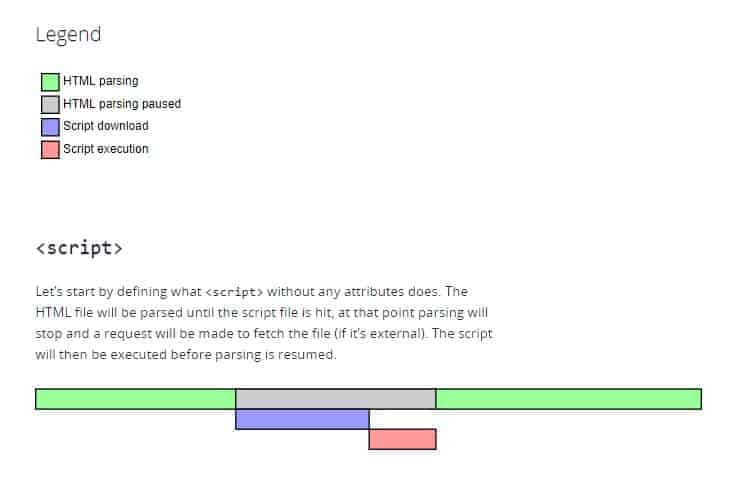
The way a regular script runs is by parsing the HTML file until it reaches the JavaScript file, at which point the parsing will be paused until the file is fetched and executed (downloaded). Here’s a useful chart from Growing with the Web to give you a better idea:
This is how a HTML file is parsed without any added attributes
With the async attribute, the JavaScript file is downloaded during the HTML parsing. So the HTML parsing continues while the script file is being downloaded. Once the JavaScript file is downloaded, the HTML parsing pauses to execute it. Here’s another graph from the same source to better understand the concept:
Refer back to the legend in the previous graph to see how async parsing works
The defer attribute downloads the file during HTML parsing but does not execute the script until the parsing of the website is finished. In other words, the parsing isn’t paused to execute the script like in the case above. Instead, the JavaScript file is executed once the rest of the page is loaded.
With the defer attributed, the script file is executed only once everything else on the page has been loaded
So, which attribute should you use?
In most cases, the async attribute is recommended over the defer attribute. Defer is a better choice in a very few cases – like if the script relies upon or is relied upon another script file.
So back to using our plugin. First, add it to your WordPress plugin library through the plugin’s website or by searching for it from your WordPress admin account.
Once you’ve installed and activated Async JavaScript, go to the plugin’s settings.
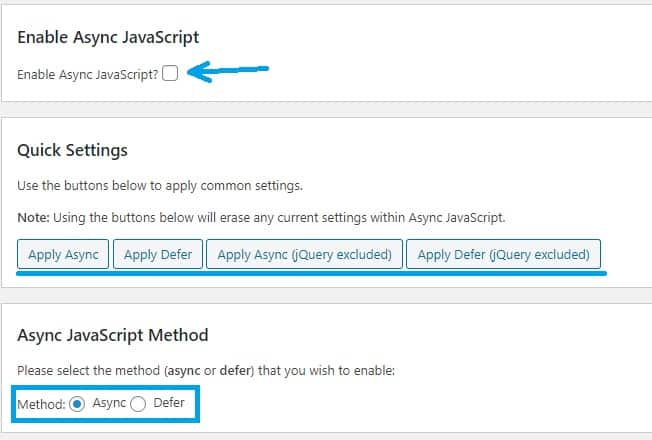
The Async JavaScript settings
As you can see from the images, there are some quick and easy settings you can apply to your website’s scripts. Once you’ve enabled the plugin at the top, you can simply click any of the buttons in the second section to easily apply common settings. The third section allows you to choose between the async and defer methods.
The cool thing about Async JavaScript is that it provides you with full control over which scripts you want to defer parsing for. It also allows you to specify the type of attribute (async or defer) for each individual script. You can adjust this in detail by tinkering with the plugin’s additional settings.
An example of how you can specify the attributes for different scripts
There’re also some JavaScript files that you may wish to exclude from the deferred parsing method. This is especially the case with some plugins and themes which rely on jQuery scripts. If you defer their parsing, you may end up messing up the site’s core functionality. For this purpose, Async JavaScript allows you to exclude jQuery scripts from the defer parsing functions.
Your safest bet with jQuery scripts is to exclude them from being deferred
You can also adjust the settings for each of your plugins and themes. Neat, right? You may need to play around with the settings for a while though, so as to see which attributes work best for the different scripts.
2. Add Varvy’s Code Snippet
Patrick Saxton’s method involves pasting Varvy’s code snippet into the HTML file to defer parsing of JavaScript so as to not load the external file that you specify until after the rest of the HTML document has loaded.
Keep in mind that there are two types of JavaScript files – and Saxton makes this quite clear:
JavaScript files you need in order to keep the page loading properly. This includes things like plugins or themes, which enable core functionality.
JavaScript files that you don’t immediately need, but do stuff after the page loads. This includes badges in the footer, click events, and so on.
Varvy’s code snippet is appropriate for the second category of JavaScript files – ones that aren’t crucial for the proper functioning of your website. The loading, i.e. parsing and execution of the secondary JavaScript files will begin after the main content has already loaded.
To use this method:
Open the appropriate HTML file.
Before the tag, located near the bottom of the HTML file, copy and paste the following code:
Replace the part in bold – defer.js – with the name of your external JavaScript file.
Double check the pathway. Make sure that the JavaScript file you specify exists in the same folder as the HTML file.
And you’re done!
3. Edit Your functions.php File
The last method we’ll look at, which you can use to defer parsing of JavaScript, is editing the code in your functions.php file.
You can access your functions.php file either via SFTP client or directly from WordPress.
If you’re using SFTP client, go to the WordPress root directory > wp-content > Themes > your current theme> functions.php. Then, download and edit the file, before uploading the updated version back to theme folder.
If you want to access the file directly from WordPress, go to the WP admin dashboard and select Appearance > Editor. From here, select a theme and click on Select theme to edit from the drop-down menu. Find Theme Functions (functions.php) under Theme Files. Double click. The file will open, so you can edit it and click on Update File once you’re finished.
Paste the following code snippet in your functions.php file to defer parsing of JavaScript:
function defer_parsing_of_js( $url ) {
if ( is_user_logged_in() ) return $url; //don’t break WP Admin
This code defers the parsing of JavaScript files on your website, excluding jQuery files so as to prevent the possibility of any core functionalities getting messed up.
While this solution is quick and easy, it does not give you as much control as, for instance, using the Async JavaScript plugin does.
The internet has arguably made a lot of things more convenient for us. From paying bills, to online shopping, academic research, and entertainment – there’s little you can’t do with a computer and an internet connection. However, this also…
When a visitor opens your WordPress website, their browser displays its content by fetching it from top to bottom. If it comes across JavaScript, it will stop retrieving the content until it fully loads and parses the JavaScript file on the…
Since Google’s speed update in July 2018, speed has become an important factor in website rankings on mobile searches. In fact, if you’re running your own website, you probably already know that having a fast-loading website is important both…
3 Ways To Enable GZIP Compression on Your WordPress Site
By Douglas Moore
Last Updated On
April 14, 2020
Since Google’s speed update in July 2018, speed has become an important factor in website rankings on mobile searches. In fact, if you’re running your own website, you probably already know that having a fast-loading website is important both for SEO rankings and visitor satisfaction. With the plethora of visually stimulating information bombarding internet users, no one wants to stick around on a website that takes forever to load.
That’s why it’s important to use everything in your arsenal to have a fast-loading and smoothly performing website. One of the main ways to increase the loading time of your web pages is by decreasing their size. And the best way to do this is by enabling GZIP compression. By enabling GZIP compression to reduce the size of your web pages, you will:
Increase your web page loading speed.
Improve the rendering of your website.
Reduce that data which the site visitor has to use when visiting your website.
It’s a win for all!
Enabling GZIP compression is one of the easiest ways to optimize your website
What Is GZIP Compression and Why Does It Matter?
GZIP is basically a file format and software app which can be used for the compression and decompression of data. GZIP was originally created as a free compression/decompression software for GNU by Jean-loup Gailly and Mark Adler way back in 1992!
Today, nearly 30 years later, GZIP is software supported by all browsers. Once you have GZIP enabled, browsers read this in your pages’ headers and automatically compress them. But what does this mean?
The GZIP file format compresses a web page’s HTML, JavaScript files, and stylesheets (CSS), which significantly reduces the weight of the page. This allows it to load more quickly and to use up less of the client’s data. In fact, GZIP compression has allowed up to 70% decrease in the weight of some pages! Can you imagine how much this increases page loading speed?
About 47% of website visitors expect a web page to load in 2 seconds or less.
About 40% of visitors say that they will abandon a web page if it takes more than 3 seconds to load.
Even a single second of delay in the page’s response can result in a 7% conversion loss! This means that a website that loads one second more slowly can cost you a 7% reduction in sales!
So there you have it – even the smallest decrease in loading speed can end up costing you site visitors and sales.
Alright, so that’s site visitors – what about browsers?
Well, we already mentioned that the Google speed update takes page loading speed as a factor in mobile SERPs. What this means is that Google crawlers prefer faster loading websites and bring them closer to the front page of the results!
There are a lot of tools you can use to improve your SEO rankings, but honestly, you should by no means miss out on enabling GZIP – it’s too simple and profitable to skip out on!
Do You Need GZIP Compression, or Is It Already Enabled?
GZIP compression may already be enabled on your WordPress website by your web host or one of your website contributors.
So how can you tell if you need to enable GZIP compression, or if it’s already enabled?
Well first of all, running your website through a speed testing tool like GTmetrix or Google PageSpeed Insights can give you a good idea of what you’re doing right as well as what you’re doing wrong. We recommend using one of these tools to check what areas you can work on to improve your website’s loading speed and performance.
For instance, you may learn that while you’re doing a good job in optimizing your images, you are falling short in other web optimization methods – like enabling GZIP compression. If your test results in GTmetrix or Google PageSpeed Insights have a line that says something like “enable GZIP compression” or “enable page compression,” it means that you probably don’t have GZIP compression enabled and should do it!
How to Check if GZIP Compression is Enabled
If you don’t want to run your page through a speed test tool and then have to interpret the results, there are two easy ways to directly check if GZIP is enabled on your WordPress website.
1. Use An Online Testing Tool
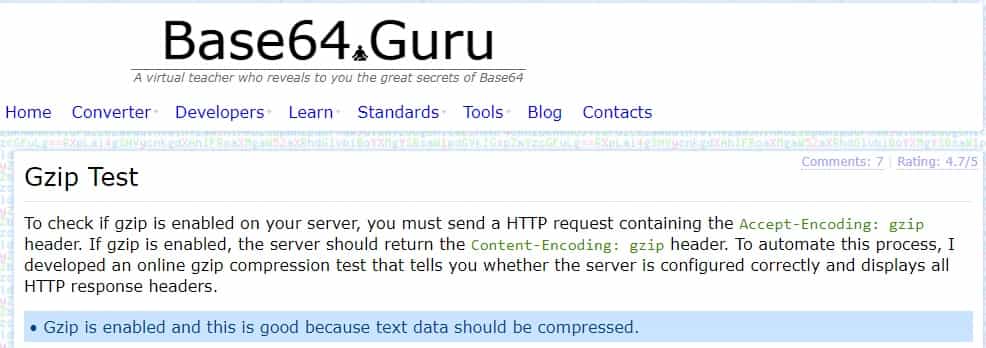
An easy way to simply check if GZIP compression is enabled on your website is running it through a specialized online tool, like the Base64 Guru GZIP compression test. All you need to do is enter your website’s domain, hit enter, and see what it has to say!
Check if GZIP compression is enabled on your web page using an online test like Base64 Guru
As you can see, after we ran our website through Base64 Guru, we got the result at the bottom of the image saying Gzip is enabled and this is good because text data should be compressed.
If you run your website through a specialized tool like Base64 Guru, or one of the general page speed tests like GTmetrix or Google PageSpeed Insights, and you learn that GZIP compression isn’t enabled, you should work on changing that right away!
2. Check Using Chrome Developer Tools
Another simple way to check if GZIP is enabled on your website is by opening your website, accessing Chrome’s Developer Tools, and then checking if GZIP compression is present in the header.
Here’s how to do that.
Open your website.
Go to Customize and control Google Chrome > More tools > Developer tools. The developer tools window will appear on your website.
Click on Network from the options in the top tab. Then, click on the link that appears in the box.
Open the Headers tab. Two windows will appear one under the other. The top one will say General, the bottom one will say Response Headers. That’s the one we’re looking for!
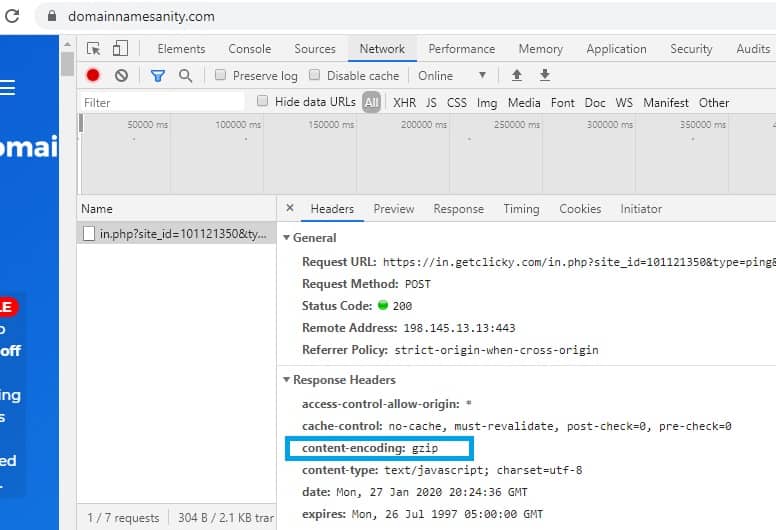
In the Response Headers window there is a line that says content-encoding. If you have GZIP enabled, gzip will appear next to this line. Here’s an example of what this will look like if GZIP is enabled on your website:
Check if GZIP compression is enabled from Chrome DevTools
As you can see, we used Chrome DevTools to check if GZIP is enabled on our website.
Once you’ve used one of these methods, you’ll know if GZIP is enabled on your WordPress website.
If, on the other hand, GZIP is nowhere to be found, it’s time to change this before moving onto those other website-enhancing techniques.
So without further ado, let’s look at how you can enable GZIP compression on your WordPress website!
How to Enable GZIP Compression On Your WordPress Website
There are a few simple ways to enable GZIP compression on your web server. Depending on what you feel comfortable doing, you can enable GZIP compression either by using a WordPress plugin, or by modifying the files on your web server.
1. Use a WordPress Plugin
WordPress plugins such as WP Rocket or W3 Total Cache include options to enable GZIP compression on your website. These plugins enable GZIP compression by adding GZIP compression rules to your .htaccess file (you can also do this yourself – and we’ll cover that in the next step).
Still, for these plugins to modify your .htaccess file, they’ll need to have permission to access it. If the plugins don’t have permission, you’ll either need to ask your host to provide it or do the work in the .htaccess file yourself!
Still, let’s look at an example of how you can enable GZIP compression using W3 Total Cache. First, you’ll need to add the plugin to your WordPress plugins library and activate it.
Once activated, there will be a Performance tab above your admin dashboard. When you hover the mouse above it, a drop-down menu will appear. Click on General Settings from the drop-down menu.
Scroll down to Browser Cache from the ensuing window.
Check the box that says Enable HTTP compression, like so:
To enable GZIP compression using W3 Total Cache, enable HTTP compression under the Browser Cache section
Then, click on Save all settings.
2. Update Your .htaccess File In Apache
If your web host uses Apache – and most shared hosts do – you can enable GZIP compression by adding some code to your .htaccess file. To do this, you’ll need to connect to your host via SFTP client. If you haven’t logged into your server using SFTP client before, you can find your username and password in an email that your host sent you way back when you signed on. If you can’t find that email, ask your host for the information.
So, to update your .htaccess file, connect to your server via FTP client. Then, access your WordPress root folder, and locate the .htaccess file. If you can’t see your .htaccess file, click on show hidden files.
Copy and paste the following code into your .htaccess file:
The internet has arguably made a lot of things more convenient for us. From paying bills, to online shopping, academic research, and entertainment – there’s little you can’t do with a computer and an internet connection. However, this also…
When a visitor opens your WordPress website, their browser displays its content by fetching it from top to bottom. If it comes across JavaScript, it will stop retrieving the content until it fully loads and parses the JavaScript file on the…
Since Google’s speed update in July 2018, speed has become an important factor in website rankings on mobile searches. In fact, if you’re running your own website, you probably already know that having a fast-loading website is important both…
JPG vs JPEG: Understanding the Difference
By Douglas Moore
Last Updated On
April 7, 2020
Images are the principal format that communicates content to internet users today. Lots of web optimization techniques are based on the idea that images – the first thing that a potential customer or user sees – is the deciding factor for whether a visitor buys the product and stays on the site or not.
And not for nothing – image optimization is one of the key elements of improving the performance of your website. Just think: especially with the increased use of mobile phones, internet users often scroll through content too quickly to consider the text, but can easily be drawn back up the newsfeed when their attention is captured by a relevant or interesting image.
As images are the most popular form of content, the JPG, or JPEG image format is the best option for pictures on the internet. You are sure to have come across numerous JPG or JPEG images in your career of internet browsing. In fact, JPEG, or JPG, are the most commonly used image formats on the web.
But hold on – what’s all this JPG or JPEG talk? Is there a difference? What is it?
In this article, we’ll answer these questions and delve deeper into the attributes of JPG. Or was it JPEG?
What’s the Difference Between JPG and JPEG?
Since this is obviously the main question on everyone’s mind, and likely the reason you’re here, let us start off by clearing it up. We have prepared this fun image challenge that will explain the main difference between JPG and JPEG. Ready? OK.
Find the differences between the two images:
Can you spot the difference between the two images?
As you cleverly observed, the difference is that one single e. Mystery solved, case closed. The only difference is one letter! Both JPG and JPEG extensions are generally used interchangeably. You may have noticed when saving an image in Paint, for instance, that saving an image as JPEG or JPG is a single option, unlike saving it as PNG, for instance.
When saving an image in Paint, the JPEG image format can be used interchangeably for any of these extensions
Although we’ll go over the main features of JPEG and JPG image files in more detail in a bit, here’s a quick overview:
JPG and JPEG both stand for Joint Photographic Experts Group. This ISO standard was first released in 1992, and it’s a bitmap compression format.
This image format is quite commonly used by photographs, and is the most often used format to derive raw image format from a camera. JPEG is the most commonly used format by digital cameras and other photo sharing devices.
JPG and JPEG are raster images, as opposed to vector image files.
JPG and JPEG use lossy compression, which means that when you compress an image in this format, they lose quality but also have a reduced file size. This is what makes them ideal for your WordPress page, as you can adjust the compression to strike the ideal balance between image quality and storage size. You can choose to compress JPEG/JPG images in rations that range from 10:1 to 20:1.
The JPG/JPEG image format is also defined by the following extensions: .jpe, .jif, .jfif, and .jfi.
But this still leaves us with the question: why is it sometimes JPG and other times JPEG? Why the difference?
Basically, older Windows versions only support file extensions which use a three letter format. Earlier versions of Windows, such as MS-DOS 8.3 and FAT-15 file systems, support only three letter file extensions, which is why JPEG was shortened to JPG.
Newer Windows versions and all MAC and UNIX versions do use the JPEG extension in addition to JPG. That’s why most image processing programs, like Adobe Photoshop and Gimp, save JPG/JPEG images using the .jpg extension to be on the safe side. However, if for some reason you want to change the default image format so they save the extensions as JPEG, you can easily change the settings in these programs.
Can I Convert a JPG to a JPEG?
As we already mentioned, you can change the extension type in any image processing program. But you can also simply change the extension in File Explorer of Finder. This won’t cause any trouble or change anything in the file itself, since – as we mentioned about 100 times by now – JPG and JPEG are basically the same.
What are the Different Types of Image Formats?
Before we delve into the specifics of the various attributes of JPG/JPEG, let’s look at a quick overview of the different image formats available.
JPG/JPEG
This is the most commonly used format on the web for photographic images. JPEG images can be compressed to take up less storage space on your website without losing much visible quality. If you want to convert a high-resolution image to JPG/JPEG, but don’t want to lose the quality of the original (since JPG uses lossy compression), keep a copy of the original on your PC.
We recommend using JPG’s on your web page for full-color photographs. They are easily compatible with websites, and take up less bandwidth without significant loss in quality. Saving a photographic image in PNG, for instance, which is a lossless format, will result in a file double the size of a JPG!
PNG
The PNG image format is also frequently used, but as it takes up more space than JPEG, it’s used for graphical images on the web. For instance, if you save a photographic image in PNG rather than JPG, it will take up twice the size of the JPG alternative. This is because PNG uses lossless compression.
PNG’s are used for graphics, banners, and other simple images that use up to 16 colors, to get an optimal quality-size ratio. PNG’s are also great for use in various image manipulation programs (like Gimp or Adobe Photoshop) because they support transparent backgrounds unlike JPEG’s. This will allow you to layer details of the images without bothering to erase the background.
GIF
GIF is another common image format found on the web and which is used for simple animations and small-sized icons that use limited colors. GIF’s use lossy compression, which significantly decreases the quality of the image, so you wouldn’t want to use them for larger photographic images.
TIF
The TIF is probably the least used image format on the web, because it’s exclusively used for high-quality images which take up a lot of storage space. They’re great for print work, but will significantly slow down the loading of a webpage. If there’s a TIF image that you want to put on your website, it’s best to first export it into JPEG/JPG format and compress it to a size of about 50-100 KB.
JPG and JPEG: Features and Similarities
Without further ado, let’s look at the main features of the JPG/JPEG image format in more detail.
1. JPG and JPEG are One and the Same
Both JPG and JPEG stand for Joint Photographic Experts Group. As we already mentioned, the only time you’ll really need to be wary of which extension you use, is if you’re using an old version of Windows or sending the file to someone who is using an old version of Windows.
2. Both Formats Use Lossy Compression
Well we say both formats, but we basically mean the JPEG/JPG format – as they’re the same thing. The JPG/JPEG file format uses lossy compression, which causes the image to lose some quality when compressed. This is in opposition to image formats that use lossless compression, like PNG image formats. Lossless compression allows the image to retain all of its quality when compressed, but takes up more storage space. Let’s look at the difference between lossy and lossless compression to understand why the lossy compression of JPEG’s makes them ideal for use on the web.
Lossy compression eliminates some of the data of the original image, and thus reduces the quality of the image. However, if you do this right, the loss of quality doesn’t need to be noticeable to the naked eye at all! For uploading images to the web, you should use lossy compression in order to reduce the weight of the image file.
Let’s look at an example of what a high-resolution image and its properly compressed copy look like.
Here’s an original high-quality JPEG photograph:
The original high-resolution image, 360 KB, kind of looks like baby Yoda
Now, let’s look at what the photograph will look like when we compress it to a smaller and more acceptable-sized JPEG:
A compressed version of the original photograph, 88 KB, still kind of looks like baby Yoda
This second image was compressed to 25% of the size of the original. So from a 360 KB image which can slow down the loading of your website, we’ve ended up with an 88 KB version which doesn’t seem all that different, but does make all the difference when it comes to page loading speed and storage space. (Keep in mind that page loading speed is an important factor in SEO rankings, especially for mobiles. Plus, slow-loading pages can frustrate your website visitors!)
Especially if you have multiple images on your web page, their sizes will add up and weigh the website down. Plus, both WordPress and your web hosting provider probably have a limit on the maximum upload file size, so optimizing images with lossy compression is always a good idea. (There are actually ways to increase the maximum upload file size on WordPress, but this doesn’t change the fact that you shouldn’t use images that are too large on your website.)
Keep in mind that ideally, each image on your website shouldn’t take up more than 30-50 KB. You can compress a photo to about 20-50% of the original size without significantly losing visible quality (this can change from one image to another, so it may take you a couple of tries for each photograph before you get it right). Images up to 100-150 KB are also sometimes acceptable, if you’re compressing them from a high resolution image and compressing them any further causes a visible loss in the quality of the photograph.
Some common image compression tools you can use to convert images to JPEG are Toolur, JPEG-Optimizer or TinyJPG.
Lossless compression, used by image formats such as PNG, compresses the original data without eliminating it. This will allow you to reconstruct the data, i.e. the image, in its original form. Lossless compression of image files is generally used to improve the performance of a file’s compression ratio. Still, before rendering an enhanced version of the image, you’ll have to uncompress it. Lossless compression is more useful for image manipulation rather than uploading images online.
3. JPEGs and JPGs Are Raster Images
There are two types of computer images: raster and vector images.
JPEGs and JPGs are raster images. Generally speaking, raster images, or bitmap images, are made up of a certain number of pixels which together form a complete image.
Just to catch you up – pixels are basically the smallest physical points, or elements of a displayed picture image. Bitmaps are grids of pixels which together form the whole image. Therefore, raster, i.e. bitmap images are comprised of a number of pixels of varying colors or hues, which together form a comprehensible image.
Photographs, for instance, belong in the raster image category. Enlarging a raster image causes it to look grainy and pixelated. Some common raster image formats include JPG/JPEG, PNG, GIF, BMP, and TIF.
Vector images use geometric forms, like curves, lines, points, and other geometric shapes like polygons, which display different parts of the image as separate objects, or building blocks. The various forms in a single vector image can be edited separately. Enlarging a vector image won’t cause any distortion (won’t make the image grainy and pixelated), as the image follows geometric instructions which don’t change based on the size or resolution of the image. Common vector image formats include SVG, EPS, PDF, AI, and DXF.
Before we go over both graphics types in more detail, let’s look at what we mean by image distortion due to rescaling or resizing.
First, we’ll give an example of a vector image in two different scales to show how distortion doesn’t occur. This is a screenshot of a PDF file in the originally presented scale on Adobe Acrobat Reader:
Sample PDF – vector image format
Here’s what happens when we zoom way in, i.e. rescale the image:
Rescaled PDF, i.e. vector image
In this second image, we’ve zoomed in the PDF vector image to 800% its original size. As you can see, the text (i.e. image) doesn’t become grainy or pixelated at all.
And here’s what happens when you do the same with a raster image. Let’s use that pug again, shall we?
Sample raster image, JPEG
If we try to blow up the size of the image, i.e. increase it, the image becomes pixelated and grainy, and just not so nice to look at.
Sample enlarged raster image
As you can see, when you enlarge a raster image you end up seeing each individual pixel, with their colors and hues. It looks grainy and like it’s of poor quality.
With this in mind, here’s an overview of the varying features of raster and vector images, and what each type of image is used for.
Raster Images
Raster images are comprised of pixels.
Each pixel is of a certain color and hue, and when put together, these pixels form a comprehensive image, or photograph.
As they’re composed of pixels, rescaling raster images can lead to quality issues and grainy results.
They usually occupy more storage space than vector images.
The resolution that each raster image is displayed in is measured in dpi (dots per inch).
Higher dpi means better image resolution and detail – but remember that images of too high a quality can be harmful for your website’s loading speed, so you should compress them.
Raster images are set to be the web standard, so they’re the preferred image alternative for internet use. In other words, you’d usually want to use raster images for your website.
Best used for: photographs, detailed graphics, scanning artwork, and print.
Common raster image formats are: JPG/JPEG, PNG, GIF, BMP, PCX, and TIF.
Vector Images
Vector images are comprised of paths. These paths are based on simple geometric formulas that allow you to create forms like lines, curves, circles, polygons, and other geometric shapes.
Since they’re comprised of paths, vector images can be resized and rescaled without any loss of quality. In other words, you can rescale these images without getting a grainy-looking result.
Vector images work well for images of flat, uniform color.
Best used for: logos, fonts, and other geometric images, like straight-edged line art.
Common vector image formats are: SVG, EPS, PDF, AI, and DXF.
4. JPGs and JPEGs are Used for the Same Type of Image Files
We already mentioned that raster images are generally used for photographic images. JPEGs and JPGs are the most commonly used raster image formats for digital photography. The bitmap formed when you take a photo displays a detailed photograph with intricate colors and hues, and it generally comes in the JPEG/JPG image format.
You may remember that the TIF format, which is also a type of raster image format, provides the highest quality images. However, JPEGs and JPGs are preferred for use on the web as they can be compressed using lossy compression to pertain most of the visible quality of the photograph without sacrificing as much storage space.
Therefore, we recommend that when uploading photographic images to your website, you should try to use the JPEG or JPG image format.
The How-To’s of JPEG and JPG: Compression and Conversion
Now that you have a better idea of the properties, attributes, and uses of JPEG and JPG, the most common image format on the web, let’s look at some practical ways you can approach them. Namely, we’ll take a look at how you can compress JPEG and JPG images so that they take up less storage space on your website. Then, we’ll look at how you can convert images from other formats to JPG and JPEG.
1. How to Compress JPG and JPEG Images
Compressing an image, especially a larger one, is crucial in optimizing it for use on the web. As we’ve already mentioned, ideally you’d want most images on your website to be between 30 and 50 KB in size, but you can make exceptions in several cases – and have your image be between 100-150 KB if you’re compressing it from a very high-resolution image. This is because if you compress the image too much, it may visibly lose some of its quality.
You can refer to the example of the baby-Yoda-looking pug above to see how successful lossy compression works to reduce the size of the image without visible changes to the quality. So now, we’ll take a look at several tools you can use to compress JPG and JPEG images.
The three main ways you can compress JPG and JPEG images are:
Online Image Compression Tools
Desktop Image Editors
WordPress Plugins
Using Online Tools to Compress Images
For quick and easy image compression, there’s a number of online tools you can access and compress your JPG/JPEG images for free. We quickly mentioned a few of them above, so let’s get into a bit more detail.
TinyJPG is one such online image compression tool. It allows you to upload up to 20 images of a maximum 5 MB size each at a time. TinyJPG works on PNG files, too.
TinyJPG is a great tool that allows you to compress JPG images online
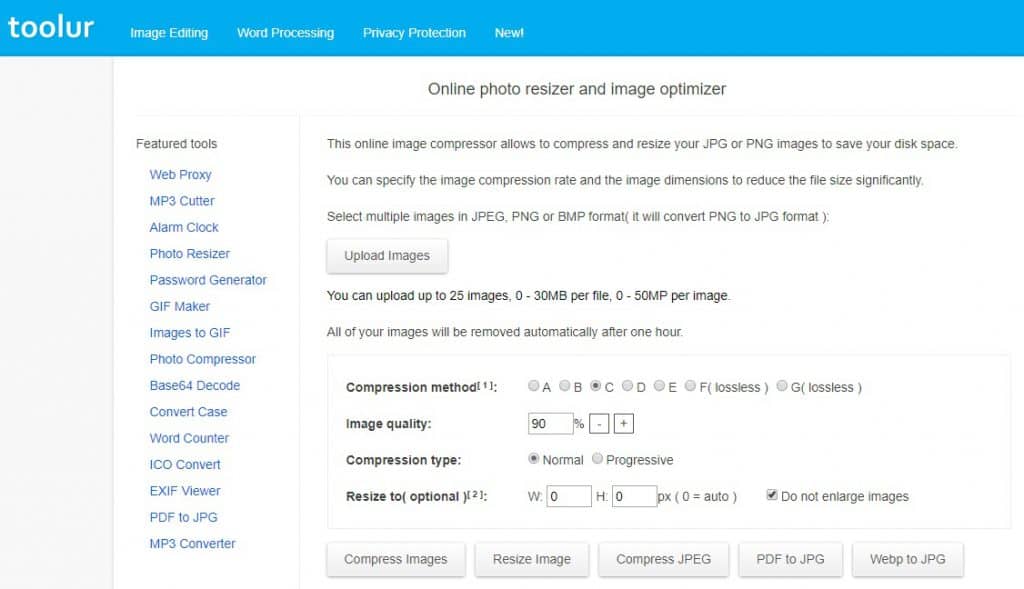
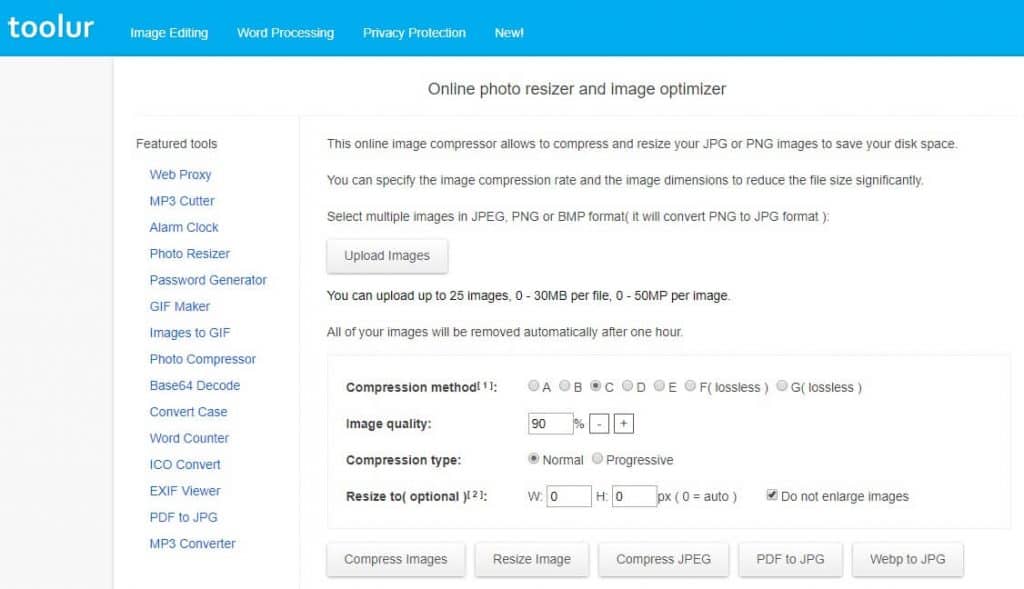
Toolur is another easy-to-use online image compressor. It provides a bit more variety in that you can compress JPEG/JPG, PNG, and BMP image files. Plus, you can use Toolur for image conversion as well! This tool is one of our favorites, as it’s a sort of a two-in-one solution.
Toolur allows you to select the percentage of compression, rescale the image, and choose to convert one of the other raster image files into the website-friendly JPG format. You can use Toolur to bulk upload up to 25 images, with each image being up to 30 MB in size.
Toolur offers great versatility when it comes to compressing and converting images for free!
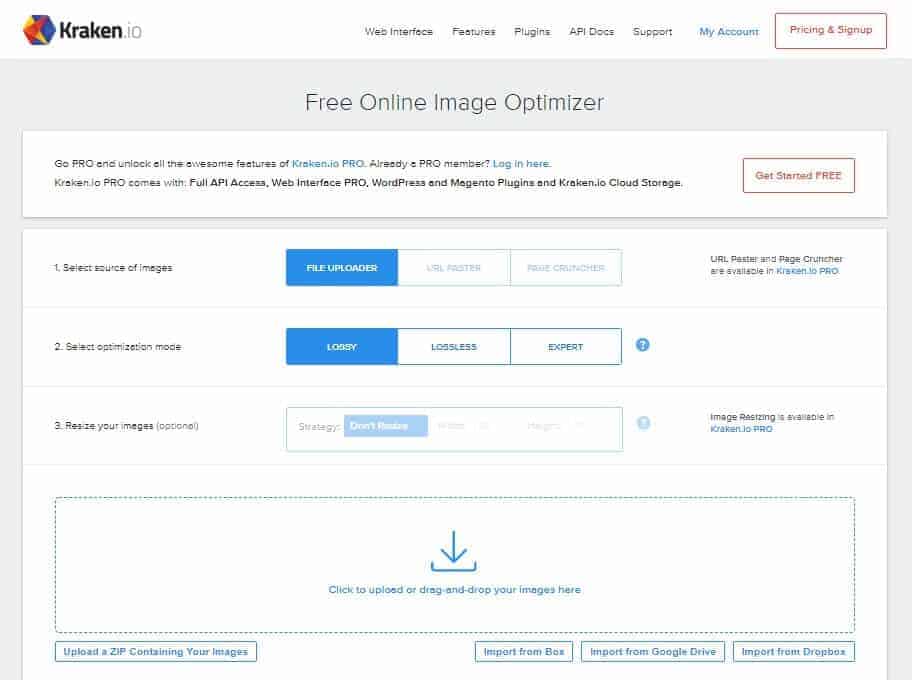
Another handy online image compressor is the JPEG-Optimizer, which only works on JPGs/JPEGs, and Kraken. Kraken can be used to compress and resize a greater variety of image file types, like PNGs and GIFs in addition to JPGs and JPEGs. Kraken also allows you to bulk upload images of up to 32 MB in size each, and up to 100 MB overall.
Using Desktop Apps to Compress JPEG and JPG Images
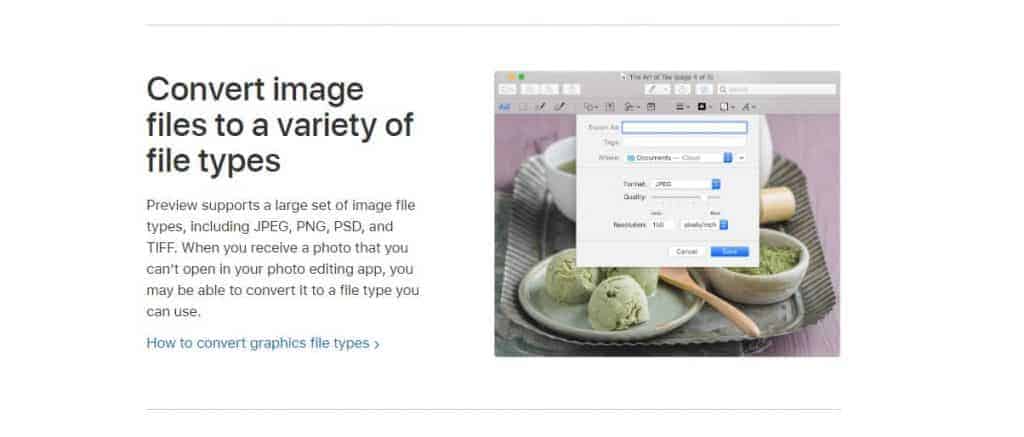
For Mac users, a simple compression tool that’s already installed in your computer is the Preview app. Go to Tools > Adjust Size to resize and compress the image. Then, save it and export it in JPG.
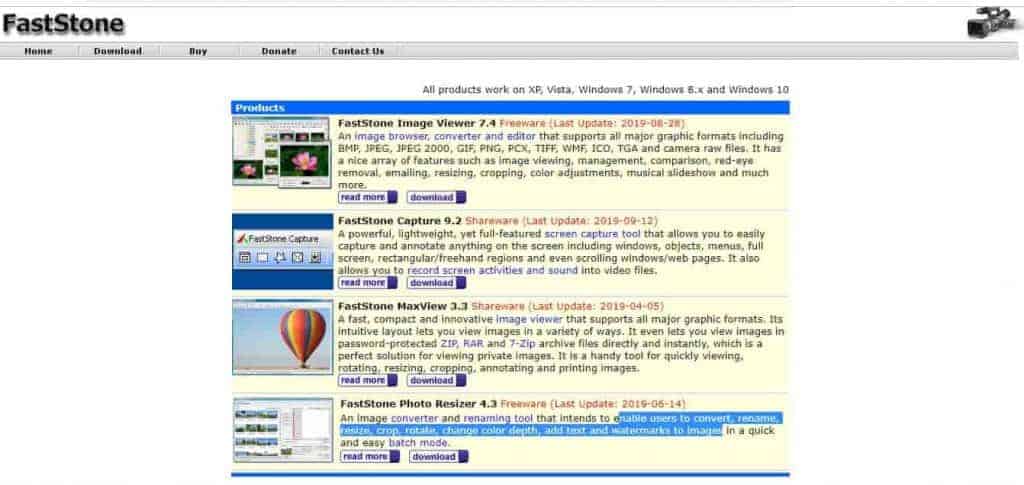
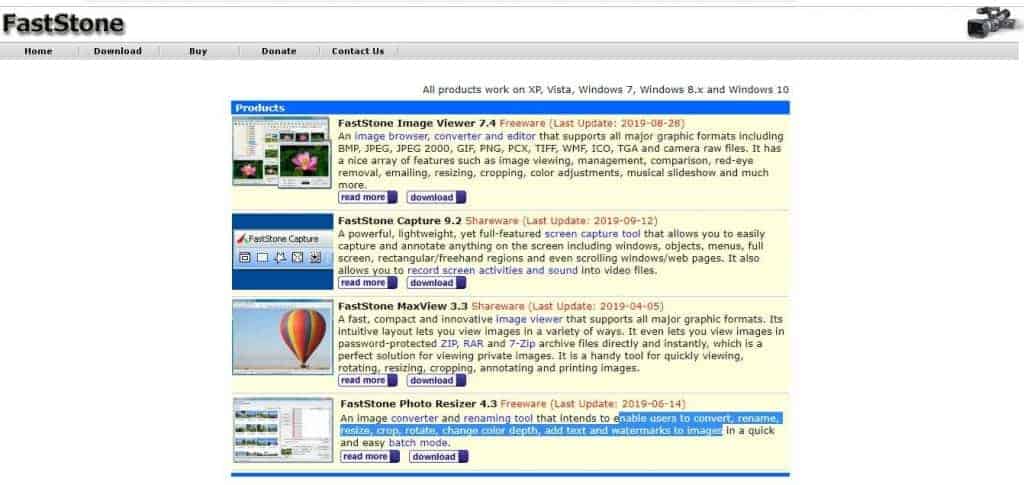
For Windows users, there’s a neat little program you can download for free to compress JPG and JPEG images called FastStone. It’s quite straightforward and takes up little storage space.
The different versions of FastStone range to include tools such as compressor, convertor, and photo editor. Since FastStone supports all commonly used raster formats, such as JPEG, PNG, GIF, TIF, and BMP, you can also use it to convert other image file types to JPG.
You can choose from the different versions offered by FastStone based on what you need!
Using WordPress Plugins to Compress JPG and JPEG Images
There’s a number of useful WordPress plugins you can install via your Admin Dashboard to compress and optimize your JPEGs before uploading them to your website.
Here are a few of the most popular WordPress plugins for image compression and optimization:
2. How to Convert Other Image Formats to JPG and JPEG
There are a couple of really easy ways to convert other raster image files to JPG and JPEG. You can do this using a desktop tool, like Paint, or using an online image converter.
Using a Desktop App
To convert an image into JPG/JPEG, just open it in Paint.
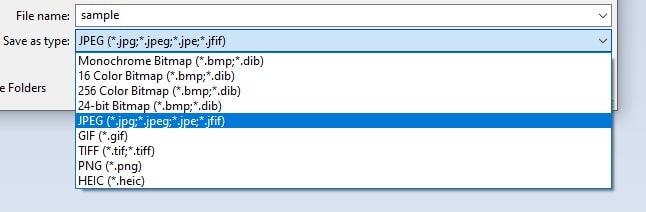
Then, go to File > Save As > and select the desired image format from the drop down menu, after naming the image.
Simply select the JPEG type from the drop down menu
You can also use Affinity Designer, Adobe Photoshop, Gimp, and so on.
Using an Online Converter
There’s a number of online image file type converters, such as FileZigZag.
Simply upload your image and select the format you would like it to be converted to – in this case, JPG or JPEG
The internet has arguably made a lot of things more convenient for us. From paying bills, to online shopping, academic research, and entertainment – there’s little you can’t do with a computer and an internet connection. However, this also…
When a visitor opens your WordPress website, their browser displays its content by fetching it from top to bottom. If it comes across JavaScript, it will stop retrieving the content until it fully loads and parses the JavaScript file on the…
Since Google’s speed update in July 2018, speed has become an important factor in website rankings on mobile searches. In fact, if you’re running your own website, you probably already know that having a fast-loading website is important both…
2 Ways to Fix the Leverage Browser Caching Warning in WordPress
With this in mind, you ran your website through one of the numerous online tests for website speed, like PageSpeed Insights or GTmetrix, only to be confronted with a Leverage Browser Caching warning. What this means, shortly, is that improper caching settings on your WordPress website are messing with its loading speed.
But don’t worry! In this article, we’ll cover what the Leverage Browser Caching warning means and how you can fix it and optimize your website speed and performance.
Leveraging browser caching in WordPress can improve your website’s performance
What is the Leverage Browser Caching Warning?
Information gets stored in your browser cache so as to increase the loading speed of the page on each successive visit. Frequently accessed resources (such as login information, HTML, CSS, JavaScript, and various media) get stored in the local memory of your PC or smartphone – the browser’s local cache. On successive visits, the browser won’t need to make the same requests to the server, asking for the same information again, because it will have it stored in its cache. This significantly increases the loading speed of the website!
So when does the leverage browser caching warning appear? When a web server (could be your server or a third-party server) lacks the proper HTTP cache headers. Alternatively, the headers may be there, but your caching time specified in your settings may be too short.
If you haven’t yet ran your website through a loading speed test, you can do it now using PageSpeed Insights, GTmetrix, or Think with Google’s Test My Site.
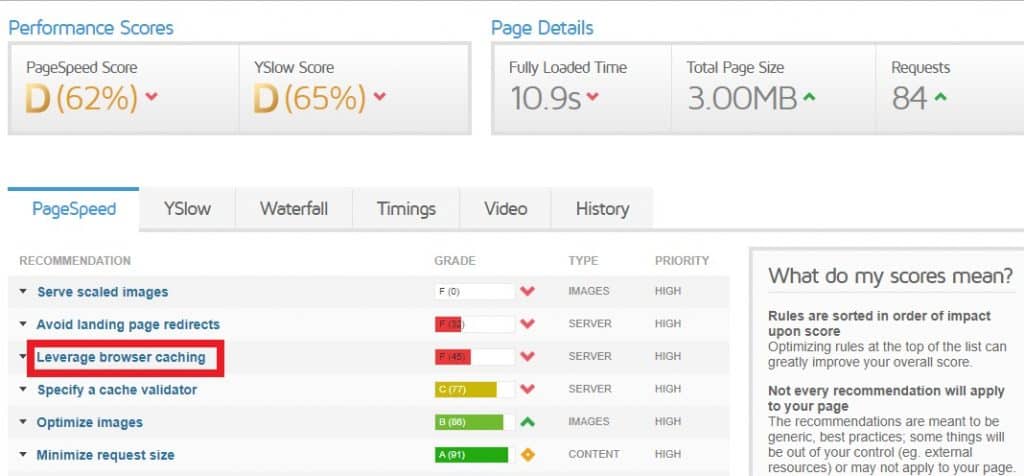
Here’s what happened when we tested a site with problematic caching settings in GTmetrix:
GTmetrix provides you with analytics on how to improve your site’s loading speed
We emphasized the line that says leverage browser caching, because it’s one of the first and most high-priority things you should focus on when optimizing your website’s performance.
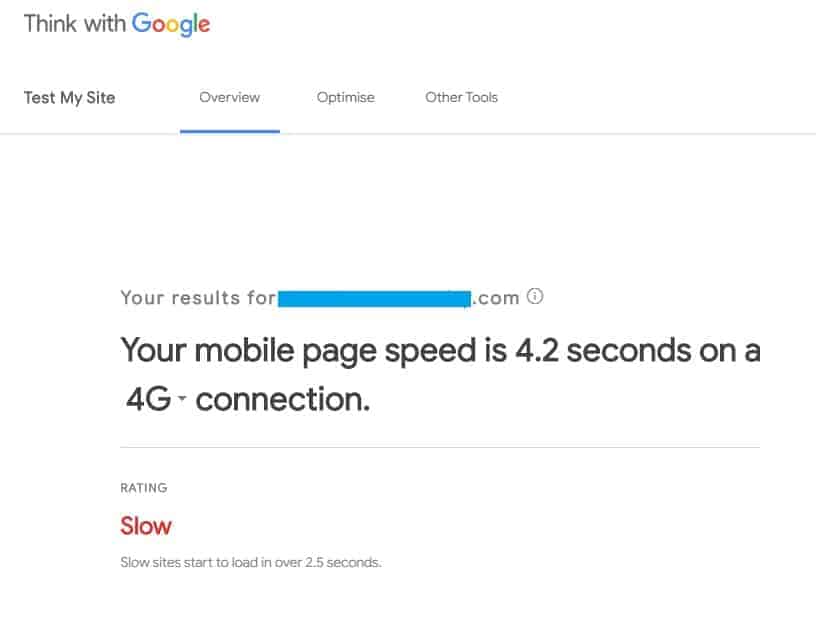
Test My Site gives a quick overview of the website’s loading speed on mobile:
The page we tested had a slower-than-average loading speed
As you can see, a slow site is any site that takes longer than 2.5 seconds to load on a mobile device using 4G internet connection. You can also click on the Generate report option on the website, enter your email address, and get a full report of what’s slowing down your website, so you can focus on fixing it.
The purpose of this guide is to show you how to implement good browser caching. This will reduce the load on the server, improve the loading speed of your pages, and with that improve the overall SEO rankings of your website.
How to Fix the Leverage Browser Caching Warning in WordPress
There are a couple of ways to leverage browser caching in WordPress. The main two we’ll focus on are:
Adding plugins through your WordPress dashboard (i.e. using plugins as third-party caching scripts)
Adjusting the settings on your server.
1. Leverage Browser Caching with WordPress Plugins
We’re starting off with plugins because they’re basically the easiest way to leverage browser caching.
Plugins are neat! They do a thousand different things and can really help improve page loading speed and SEO rankings – if you know how to use them.
Complete Analytics Optimization Suite is an awesome free plugin that automatically allows you to host Google analytics locally, on your WordPress site.
CAOS allows you to host Google Analytics locally on your WordPress website
Basically, Google’s script has a 2 hour caching time to keep users frequently updated. To prevent your local browser caching from falling behind on the updates, this plugin hosts the Google Analytics script on your server and your WordPress website. Whenever the Google Analytics script gets updated, so will your local caching thanks to this plugin! It uses a built-in Cron-schedule that will keep you ahead in the game.
Once you install this plugin, you’ll begin getting higher scores and faster loading speed results on any of the loading speed test tools we went over. This is because your website visitors’ browsers won’t have to travel to Google’s external servers to download files – they’ll be available directly from your website! This reduces external HTTP requests from Google, giving you control over local caching in addition to improving page loading speed.
To add this plugin to your WordPress website, go to your Dashboard > Plugins > Add New.
Search for CAOS, and install the plugin to your WordPress website. Click on Activate.
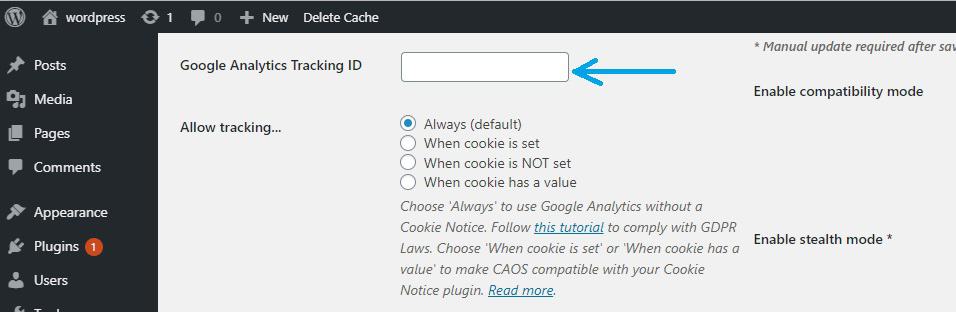
All that’s left to do is to enter your Tracking-ID and let the plugin do the rest – add the necessary Tracking Code for Google Analytics.
Enter your Tracking ID to get this plugin going!
You can choose whether to have the tracking code in the header or the footer of your theme. You can also adjust the settings to set the times when tracking is allowed, as well as whether you want your snippet to be default or asynchronous. Click Save after adjusting the settings, and you’re good to go!
CAOS will download and save the Google Analytics script files (analytics.js/ga.js/gtag.js) to your website’s server and keep it automatically updated.
If you’re having any trouble using this plugin, or have trouble understanding the concept of locally hosted files, feel free to contact its creator, web developer Daan van den Bergh.
Using the Leverage Browser Caching Plugin to Leverage Browser Caching
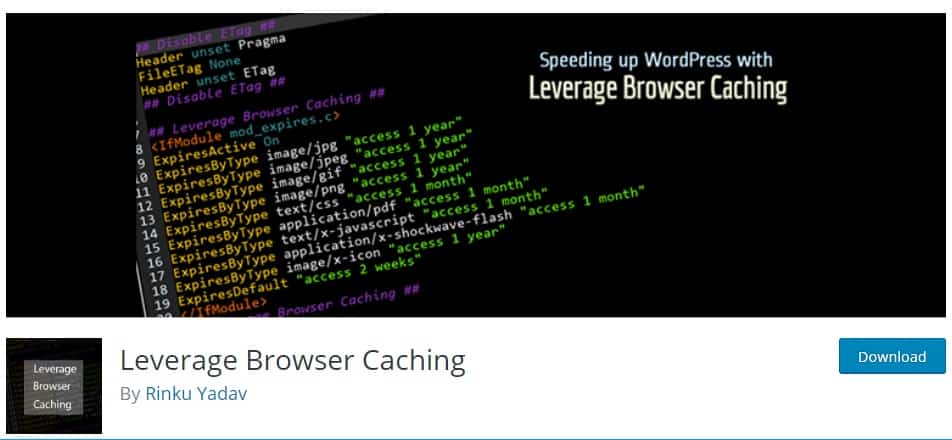
The name of this plugin is pretty self explanatory – it leverages browser caching and improves the loading speed of your web pages. You can check the improved results in GTmetrix, Pingdom, or PageSpeed Insights after installing this plugin to your WordPress website.
Leverage Browser Caching is a free WordPress plugin that can improve page loading speed
This plugin stores the static files of your website (like css and js files) in the browser cache of your website’s visitors. The next time a repeat visitor comes to your website, these files are directly retrieved from the browser. The plugin makes the loading speed of the page much faster, as the browser doesn’t need to go back to your website’s server to retrieve the same data again.
The process improves the speed of each page of your website, and the website as a whole.
The visitor’s browser will only need to download unique, new content, so it won’t take as much time as on the first visit. Additional benefits of the Leverage Browser Caching plugin are that it wastes less of the website visitor’s internet data and uses less of the website server’s bandwidth. This is great for your server, as it decreases the chances of it becoming overloaded and going down due to too many HTTP requests.
You can add the Leverage Browser Caching from your WordPress dashboard. Again, go to Dashboard > Plugins > Add New.
Search for Leverage Browser Caching and install the plugin. It works pretty straightforward, so there aren’t any settings you can – or would even want to – adjust.
2. Leverage Browser Caching on Your Server
One of the most common causes of the leverage browser caching warning is when your server lacks the proper HTTP cache headers. Editing the cache headers of your server will change the frequency with which data is updated on your visitor’s browser. There’s a lot of information that isn’t going to change every week – like your website’s logo – and it’s a drag for any browser to have to download it time and again with each visit.
Enabling browser caching via your server basically entails editing the HTTP headers to extend the expiry time for certain file types, which don’t need to be downloaded anew so frequently. We are going to see how you can change the expiry of information in your website visitors’ browsers. This will keep static info inside the browser cache for longer periods of time, and increase your website’s loading speed!
We’re going to look at how you can edit two types of HTTP headers in Nginx and Apache. The first type of HTTP header is Cache-Control and the second is Expires. While you technically can use both, it may be a bit of an overkill. Alternatively, you can choose to use only the one that seems easier to you. Cache-Control is newer, but Expires is still checked by a number of page loading test tools, like GTmetrix.
Keep in mind that when you’re dealing with code, you need to be extra careful. The smallest mistake can cause an unfortunate glitch or problem with your website. If you’re not feeling up to the task, you may ask a web developer or your web host to leverage browser caching instead.
Editing the Cache-Control Header in Nginx
Learn how to add caching headers in Nginx
To add the Cache-Control header in Nginx, find your server’s config server location, and add the following code:
This code informs the server that the file will remain unchanged for 60d ( sixty days). (This is a sample value that you can change according to your needs.) When a visitor’s browser extracts this information from your website’s server, it knows not to download that information anew for 60 days, and stores it in their device’s browsing cache.
Editing the Expires Header in Nginx
To add the Expires header in Nginx, find your server block and add the following code:
location ~* \.(jpg|jpeg|gif|png|svg)$ {
expires 365d;
}
location ~* \.(pdf|css|html|js|swf)$ {
expires 1d;
}
As you can see, you can adjust the expiration date for each file type. For instance, we’ve set the expiration time for jpeg’s, gif’s, and png’s to be one year. We set the expiration time for pdf’s, css, and html to be one day. You can adjust both the times and the file types according to your needs.
Editing the Cache-Control Header in Apache
Learn how to leverage browser caching on your server using Apache
To add a Cache-Control header in Apache, access your .htaccess file via FTP client from your domain’s root directory. You can open the file and edit it in any text or code editor, like Notepad.
Add the following code to the top or bottom of the file, i.e. either before # BEGIN WordPress or after # END WordPress.
Here’s an alternative code you can try, which gives a more comprehensive overview of controlling the expiration dates for different types of file:
ExpiresActive On
# Images
ExpiresByType image/jpeg “access plus 1 year”
ExpiresByType image/gif “access plus 1 year”
ExpiresByType image/png “access plus 1 year”
ExpiresByType image/webp “access plus 1 year”
ExpiresByType image/svg+xml “access plus 1 year”
ExpiresByType image/x-icon “access plus 1 year”
# Video
ExpiresByType video/mp4 “access plus 1 year”
ExpiresByType video/mpeg “access plus 1 year”
# CSS, JavaScript
ExpiresByType text/css “access plus 1 month”
ExpiresByType text/javascript “access plus 1 month”
ExpiresByType application/javascript “access plus 1 month”
# Others
ExpiresByType application/pdf “access plus 1 month”
ExpiresByType application/x-shockwave-flash “access plus 1 month”
Whichever code you choose to use, you can edit the caching values, in terms of file type and expiry times, based on your preferences. Some files, like css or JavaScript, usually get updated more frequently, so in this example we gave them a month. Other file types, like images or videos, don’t get changed as often, so we gave them a year.
Save the file and upload it back to the root directory.
You can now go back to one of the loading speed test websites we mentioned, and see how your results have improved. If you did everything correctly, the added code in the HTTP headings will have done its magic. Your website will show improved results with a faster loading speed, and you’ll be rid of the leverage browser caching warning.
The internet has arguably made a lot of things more convenient for us. From paying bills, to online shopping, academic research, and entertainment – there’s little you can’t do with a computer and an internet connection. However, this also…
When a visitor opens your WordPress website, their browser displays its content by fetching it from top to bottom. If it comes across JavaScript, it will stop retrieving the content until it fully loads and parses the JavaScript file on the…
Since Google’s speed update in July 2018, speed has become an important factor in website rankings on mobile searches. In fact, if you’re running your own website, you probably already know that having a fast-loading website is important both…
A Guide To Optimizing Images For Web and Performance
How much attention do you pay to the images you upload on your website?
Do you check the quality and size of the images you use?
Are you aware that image optimization can make or break the popularity and appeal of your website?
OK, we don’t want to overwhelm you! The reason we ask these questions is because a lot of the time, people spend time and effort to make their websites impeccable, but forget the importance of image optimization.
You may find yourself investing in content, design, and image quality, but dropping the ball when it comes to image optimization.
The reason why people forget about image optimization is that they think it’s a hassle. They look at it as yet another bothersome thing to do on an endless to-do list. However, image optimization is actually one of the easiest ways to improve the performance of your website. It can make or break the SEO placement of your webpage and it has a tremendous impact on user experience.
But don’t worry! We prepared a useful guide on how to optimize the images on your website for improved performance. We’ll take you through the process of image optimization step by step, so no question is left unanswered.
Without further ado, let’s look at what image optimization is and how you can optimize images for web and performance!
An optimized high-resolution image
What Does It Mean to Optimize Images?
Optimizing images means formatting them so that they are small enough to load fast and keep your page running smoothly. This is how you make Google love you, and increase the chances of bringing your website to the first page of search results. Plus, large images slow down the loading of your page. This is going to frustrate your visitors, and you really don’t want that.
The second way to optimize the popularity of your image in a Google search is to give it a relevant name. If your picture of a puppy is named img1.jpeg, how is it supposed to pop up in a Google search when someone Googles “puppy?”
Optimizing images also means maintaining a decent quality even after reducing their size. Your visitors will not be happy looking at a grainy, pixelated image. It makes your website look cheap and unprofessional.
In the end, what optimizing images means is reaching a balance between size and quality that will have your page loading quickly and your image still looking pretty good. This will bring your website in the first pages of the search results, and keep your site visitors coming back for more.
Bottom Line: Image optimization is the process of formatting images to achieve a small enough size and a high enough quality. It allows your page to load quickly and your images to look good!
Why Should You Optimize Images For Web?
Let’s go over the technical and practical reasons for optimizing images for web and performance.
Images Come Only Second to Video in How Much Web Page Weight They Occupy
According to HTTP Archive’s statistics, updated last on October 1, 2019, images comprise over 20% of the weight of a web page. Let’s look at some average values to make this clearer.
The total median weight of a page on a desktop is about 1950 KB. Images alone (if we don’t consider video) take up about 982 KB of the total weight. This is about 50% of the total weight of the page!
The numbers are similar for the weight of a median mobile page. The total weight of the page is about 1752 KB, and images take up 891 KB of that. Again, it’s half of the page’s total weight!
In other words, the Google mobile search algorithm is now affected by how quickly your page loads. The slower it loads, the lower down in the search results it will be. The faster it loads, the more chances it will come out on top.
There are two main things that slow down the loading speed of a page:
Poor JavaScript performance. This happens when either the codes are too long, or JavaScript and CSS files aren’t combined into single entities on the web page. You can work this out by using JavaScript optimization. Alternatively, CMS platforms like WordPress or Magento will do JavaScript optimization for you.
Large, high-quality images. This is the problem that concerns us right now. If your image is too large or high-quality, it will cause your page to load slowly, frustrating your visitors and losing you Google interest!
But let’s see how this translates into practical terms.
Why Is Image Optimization Important For Website Visitors?
Consider what’s popular on social media, for instance. What sort of content is most often viewed on social media? Images.
Images are the first thing that a person sees. They’re the thing that can make visitors more or less interested in the content that follows. In today’s fast-paced world, images drive audience interest. Whether it’s the promotion of products, businesses, institutions, or individuals, images are the first thing that will catch a person’s attention.
In fact, we are surrounded by images all the time. Even in our daily lives – outside the computer screens – we are surrounded by images on the TV’s in our homes, and large ads and posters on the streets.
As for the internet, well… we see images everywhere. For instance, on:
Blogs
Social Media
Product Pages
Businesses
Magazines
Entertainment Websites
Ads on websites
Your Google Homepage
E-mail
And the list goes on.
Case Study: Image Optimization In Product Placement
After extensive study and surveys of American online shoppers, the research revealed that images are the most crucial aspect of the online shopping experience.
The image is the first thing that a customer will see about a product. The first seconds of viewing are crucial! In these first seconds, the customer often decides whether they like the product or not. Whether that is the product they need.
In other words, before anyone looks at the product description, they look at the picture of the product. If the picture does not do your product justice and make it look good, a potential customer will move on without a second thought. Similarly, if the image takes too long to load, your potential customer will lose interest.
So, once again, two things are important here: image quality and fast loading speed. You can strike a balance between the two through image optimization.
Online shopping is another instance in which we go back to the Google Speed Update. As the Speed Update is aimed at mobile search algorithms, and online shopping is increasingly done via mobile, having optimized images can really help boost your sales.
If your image is of poor quality, the visitor will swipe past the product. If the image is too high-quality (large), it will load too slow and frustrate your potential customer. You don’t want visitors bouncing right off your page! And as we’ve mentioned, slow loading will also frustrate the search engine, e.g. Google. This further decreases the exposure of your product.
Bottom Line: Image optimization will bring your website to the top of the SERPs and will have your visitors coming back for more.
What Are the Benefits of Image Optimization for Web and Performance?
Before we delve into how you can optimize images for web and performance, let’s go over some of the benefits of image optimization.
Better Loading Speed
The smaller weight of formatted images improves the loading speed of your web page. This will make both search engines and visitors like your site better!
Plus, optimized images use less bandwidth. This means that internet networks running on slower internet won’t take forever to load your page, either. At the same time, your page won’t eat up much of the visitor’s limited mobile data.
Better Appeal
An optimized image will kick your page higher up in the SERPs, and will look appealing to your target audience.
Better SEO
Optimizing the image alone already improves SEO somewhat. This is because of the faster loading speed of a compressed image, for one. For another, as we already mentioned, giving the image a relevant title (name) will increase its exposure in a Google search.
Still, you should combine image optimization with a decent SEO plugin. There’s a number of great SEO plugin options for various content management systems (CMS’s). If you’re using WordPress, for instance, you can download the free or premium version of Yoast, a popular SEO plugin beloved amongst users.
Faster Backup
When your website is lighter on KB, it’s going to take much less time to create backups.
Uses Less Storage Space
Every CMS has limited disk space on its server for each user. No matter how much disk space or bandwidth you’re allowed to use, a website can grow faster than you’d think. It won’t be long before you reach a 20 GB limit, for instance, and wonder how you can scale way down.
Well, image optimization is another great way to use less storage space on your server.
Bottom Line: Image optimization improves the loading speed, appeal, and SEO ranking of your website. It also facilitates creating faster backups and uses less storage space on your server.
How to Optimize Images for Web and Performance: Overview
Striking the right balance between image size and quality
Let’s look at an example of the good, the too good, and the ugly images that you can wind up with. The “good” here refers to an optimized image, the “too good” to an original, high-resolution image, and the “ugly” to an over-compressed, pixelated image.
Here’s the original:
The “too good:” example of the original, high-quality photo, 365 KB
This is the original photograph, with low compression, and has a size of 365 KB.
That’s quite a bit, considering that the median weight of a web page is below 2000 KB. So you would definitely need to compress the photo somewhat before uploading it to your page.
Why does this adorable kitten look frightened, you may wonder. It’s because she’s afraid of what might happen if you over-compress the image. Well, this is what may happen.
The “ugly:” example of an over-compressed, low-quality photo, 50 KB
Now we’ve compressed the photo, but it looks awful. (Unless you think it looks artistic – but that’s not at all what we were going for.)
It’s grainy, pixelated, and a lot of the color and content are gone! The size of this image is 50 KB, which is too little to maintain any of the original quality of the photo.
So let’s give it another go, and try to strike the perfect balance of image size and quality.
The “good:” Example of a good quality optimized image, 100 KB
Voila! This is a medium-compression image that still maintains great quality. It doesn’t look very different from the original, but it weighs only 100 KB, almost a fourth of the original size.
The ideal size of images on your website should be between 80-150 KB, but we’ll get into the details of that in a bit. This is an example of a good size (compression) to quality ratio. The kitten still looks frightened, but at least now you can properly see the pretty colors of her fur.
What is a good file size for web images?
The best file size for web images depends on the file type, but in general, an image shouldn’t surpass 150 KB, at most. If you’re working with a “full page” or a high-resolution image, 100 – 150 KB is a good range to aim at when compressing.
As you witnessed from the example above, compressing a high-resolutionimage to 25-50% of its original size doesn’t make any significant changes in quality.
Can you really tell the difference between the 365 KB and 100 KB photo versions of the kitten? It’s rarely worth slowing the load speed on your page and increasing its weight with a 2 MB image file (which again, should be the full weight of your page!).
Plus, compressing a 2 – 3 MB image to the recommended range of 80-150 KB won’t affect the visible quality of the image.
That’s high-resolution images. What about small or simple images that either take up a tiny part of the page or don’t contain much content? In that case, compressing an image to under 100 KB is recommended.
In fact, when it comes to small images like banners, compression to 20 – 30 KB is ideal. While high-resolution images are usually in JPEG format, simpler images (like graphic images or text) are in PNG format.
This brings us to the different types of image formats, and which formats are most suitable for different purposes. But before we get into that, let’s go over the two types of image compression.
The difference between lossy and lossless image optimization
You can optimize images using lossy or lossless compression.
The example we gave you of image optimization (the cute kitten) was done with lossy optimization. The reduced size didn’t visibly affect the quality of the photo! If maintaining the initial quality of the data is not a priority for you, lossy compression is a good choice.
The great thing about lossy compression is that it significantly reduces the size of the original image, which is what you’re aiming for with image optimization anyway.
However, as lossy compression degrades the quality of the image, be mindful of how much you reduce it. As we’ve mentioned, you can reduce an image to 20-50% of the original. But reducing it too much can result in a grainy, pixelated photo that won’t look good.
Lossless compression compresses the original data, without eliminating it. With lossless compression, you’ll be able to reconstruct data in its original form. Lossless compression is basically used to enhance the performance of a file’s, or in this case, an image’s compression ratio. However, before rendering, you’ll have to uncompress the image.
We recommend that you try both methods and see which one you prefer. In the end, you may find that lossy is better for one type of image, and lossless better for another. Let’s circle back to image formats.
What is the best format to save images for web?
There are several different types of image formats you can choose from depending on the context and aim of your image.
JPG, or JPEG
JPG, or JPEG is the most widely used image format on the web. The great thing about JPG’s is that they can be compressed to a small size without losing much of the visible quality of the image. The example we gave is a JPG image.
JPG’s are compressed with lossy compression, so a good deal of the original’s data is eliminated in the process. You may lose some nuances if the original is a very high-quality photograph. But if you need to change the compression or size of the image, you can always keep a copy of the original in your computer.
We recommend using JPG’s on your web page for full-color photographs. They are easily compatible with websites, and take up less bandwidth without significant loss in quality. Saving a photographic image in PNG, for instance, which is a lossless format, will result in a file double the size of a JPG!
PNG
PNG is also a common image format, but best put to use for graphical images as it takes up more space than JPG’s. This is because PNG uses lossless compression, so optimizing a PNG image will not result in any loss of data or quality. PNG is also good for screenshots and images with less than 16 colors, otherwise, the file size may get overwhelming.
We recommend using PNG’s for graphics, banners, and similar small and simple images. PNG’s are especially great for graphics because unlike JPG’s, they support transparent backgrounds which you can layer with other details. PNG’s will maintain the quality of a simple image but will take up too much space for a photographic image.
GIF
GIF is a format that’s used for small-sized images or icons with limited color. GIFs use lossy compression that eliminates a lot of data. So, if you compress (or save) an image into a GIF, it will lose a good deal of its original quality. Since the difference in compression to a GIF is very noticeable, it’s not recommended for photographs or larger images.
The best thing about GIFs is that they can be animated! You can use an animated GIF to add some razzle-dazzle (as they called it in the 50’s, probably) to your page. But seriously – some amount of tasteful animation with purpose can help attract attention to your website.
TIF
The TIF format is the Cadillac of high-quality images. This, unfortunately, means that it’s no good for websites – it simply eats up too much space on your page. It’s good for print work, but not for your browser. If you want to use a TIF image on your website, you should export it into a JPG and then compress it to optimize the image. You can always keep the original TIF in your PC – so long as you keep it away from your website.
The Bottom Line: Use JPG for photographs, PNG for graphics, text, and line drawings in smaller file size, and GIF for icons and animations. Use TIF… never. Not on your website, that is. Keep that one to yourself!
Like with lossless and lossy compression, you can do some experimenting with image formats, too. Try to follow these general guidelines, but don’t be afraid to mix it up a bit!
With a tiny bit of know-how, you can compress images to look as good as the original, but take up much less space on your web page.
Quick Tip: Your hosting can make a huge difference in your website loading speeds and how quickly images are loaded. We’d highly recommend checking out our cheap WordPress hosting service.
How to Optimize Images for Web and Performance: Tools
We finally arrive at what tools you can use in order to optimize images.
As we’ve covered, successful image optimization means reducing the file size of the image while maintaining its quality. You can do this in a number of ways:
using online image compressors and optimizers,
using various desktop image manipulation programs,
using CMS plugins (like WordPress plugins)
Online image compressors and optimizers
PhotoShop is great for photo manipulation and editing, and a necessary tool in every web designer’s arsenal. But it’s a bit of an overkill to download it and use only for simple image compression. If all you do is compress a couple of images every now and then, you can do this using online image compressors, like Toolur, JPEG-Optimizer or TinyJPG.
TinyJPG is an easy way to compress your images
Toolur is quite straightforward and easy to use. You can upload images in JPEG, PNG, or BMP format and get them converted to PNG’s or JPG’s. You can select the compression method (lossy or lossless), the percentage of image compression, and even resize the images. Toolur also allows you to bulk upload up to 25 images, each up to 30 MB in size. For a free online tool, that’s quite a generous upper limit.
Toolur allows you to select the percentage of the compression, select between lossy and lossless compression, choose a compression type, and even resize the image(s)!
JPEG-Optimizer is another very simple online tool you can use to compress images, but as the name suggests, it only works on JPG’s.
Kraken is an online image compression tool that offers a bit more versatility. You can use it to optimize and resize most image file types: JPG’s, PNG’s, and animated GIF’s.
Using Kraken is easy and fast! Drop and compress multiple images at once.
Like Toolur, Kraken allows you to bulk upload photos for multiple optimizations at once. You can then download them in a zip format, or directly export them to your Dropbox or Google Drive. The free version allows compressing images up to 32 MB in size each, and up to 100 MB in total. The premium plans allow you to upload more (500MB, 2GB, 5GB, etc.) for a monthly fee.
These online programs are quite basic and only work to compress an image. If you want a more versatile online image editing tool, you can use Ribbet. You can also download Ribbet for free, or add it as an extension to your browser. Keep in mind that this will require the use of Flash.
Ribbet is a great online image editor that you can use for free!
Another great online photo editor is Canva. It’s free and really easy to use. It has a similar interface to Photoshop, but you won’t need any prior photo editing knowledge to use it.
You can also use Canva to create all sorts of custom designs for your website!
Simple desktop programs
There are some programs that you already have on your PC or that you can get for free to optimize images. We’re talking programs that take up little disk space and will get the job done.
If you’re using a Mac, the simplest way to optimize an image is to use the Preview app. You just need to go to Tools > Adjust Size > and then save or export as a compressed JPG file. You can resize and also convert images to any file type.
How to optimize images using the Mac Preview app
For Windows, there are two great programs that take up very little disc space and you can download for free. One of them is FastStone. It comes in several different versions you can choose from based on what you need from the photo editor. FastStone supports all popular graphic formats (BMP, JPEG, PNG, GIF, TIF, and so on). You can use it for image optimization and all kinds of editing.
The different versions of FastStone
The other great program for Windows that you can download for free is PIXresizer. PIXresizer is quite basic but very easy to use. It’s the ideal tool for image optimization, as you can use it to compress images so as to optimize them for web and email.
Like FastStone, it supports most main image formats, and you can use it to convert from one file type to another. It also comes with some additional straightforward tools – resizing, color manipulation, and so on.
Advanced Desktop Programs
The two most popular image editors are PhotoShop and Gimp.
Optimizing images in PhotoShop is very easy using their “Save for Web” function. All you need to do is open an image, go to File > Export > Save for Web. This will compress the image to a size that’s acceptable for your webpage.
Gimp is PhotoShop’s less fancy cousin. It basically does the same job, except it’s free! It’s also open-source, so anyone can edit the code, add onto the program, and fix bugs.
To optimize an image in Gimp, go to File > Open > select the image > File > Export As. A dialogue box comes up and you choose the name and extension (ex. JPEG), and click on “Export.” In the resulting dialogue box, select “show preview in image window.” This will give you all the options you need for easy and simple image compression. You can adjust the quality and directly see what size the image would be for that level of compression. You can also play with different types of compression.
Additionally, Gimp now has a plugin for a “save for web” function, like PhotoShop.
The homepage of Gimp, the best free image manipulation program
Plugins
Content management platforms (CMS’s) offer a variety of free and premium plugins that you can use to directly optimize an image before uploading it to your webpage.
Some examples of plugins that you can use on WordPress, the most popular CMS today, are:
Let’s look at ShortPixel as an example of how these plugins work – although each of them has varying features and specifications.
ShortPixel is a cloud-based image optimizer, so it improves your site’s loading speed without consuming resources on your site’s hosting account to optimize the images.
What does this mean?
ShortPixel is probably the easiest-to-use image optimization plugin. It requires very little work on your end. Simply install it, and click the button to optimize all of the existing images on your WordPress site. It automatically reduces the size of all of the new images that you upload to an acceptable, lowered file size. Generally 30-50% smaller, depending on the image.
You can get ShortPixel in a free or premium version.
Bottom Line: You should optimize your images before uploading them to your website. You can either do this using an online image optimizer or a desktop program. Alternatively, you can use one of many available CMS plugins.
Some require optimization prior to upload, while others, like ShortPixel, do the optimization simultaneously as you go. In other words, they automatically optimize your image as you upload it.
How To Optimize Images for Web and Performance Using Image SEO
Now that we’ve looked at how we can optimize images by manipulating their size, let’s see how we can optimize them by manipulating the image file names and tags.
Creating a Custom Filename
When Google’s algorithm and crawlers go through the entirety of the internet looking for the right information to display, they don’t so much look at the images as they look at image filenames.
We briefly mentioned at the very beginning of this article that if your image of a puppy is named something like img1.jpeg, the chances of it showing up in a SERP are very slim.
To improve your chances of bringing your image – and thus your website – closer to the front of the search results, make sure to give your image a relevant filename.
For instance, if you’re showing an image of the Taj Mahal at sunset, your filename should be taj-mahal-sunset.jpg. Notice here that:
The keywords of the image – the Taj Mahal – is at the very beginning of the image filename. It’s the principal subject on the photo, and that’s why it should be the very first thing written in the filename.
Avoid stop words that don’t add much to the meaning. For instance, the name isn’t the-taj-mahal-at-sunset. “The” and “at” are fluff in this case, and unnecessary. As Michael Scott says, KISS (keep it simple, stupid).
An additional tip concerning the filename would be try to include the web page’s target keyword in the image filename.
For instance, if you’re selling products on your website, and it’s an image of a product, name it using your brand name (target keyword) and the product itself. Let’s say you’re selling lava lamps and your brand is called Psychedelic, the image filename should be psychedelic-lava-lamp.jpeg.
Pro Tip: In this particular case, you may get even more visits from people actually Googling psychedelic lava lamps and not your brand in particular. Neat, right? Try getting a frequently used word in your product or brand name.
Bottom Line: Customizing the image filename is very easy and you shouldn’t skip out on it. Although your site visitors won’t see it, it will give search engines more data about the information offered on your page!
Use Alt Tags
Alt tags are generally not seen by website visitors, but detected by search engine crawlers. This will help bring your website further forward in the SERPs.
Alt tags, also known as “alt text” or “alt descriptions,” are a written copy of the image that will appear in place of the image if the website fails to load it to the screen. The visitor can see what the image should have been, and the crawlers see it when searching your web page, thus improving your ranking.
You can add alt tags through your CMS, like WordPress. In most CMSs, when you click on an image in your blog post, you get a window with Image Options. The window includes a text field entitled Alt text, where you can type in the alt tag.
Add an alt tag in WordPress using the Alternative Text box
You can also directly change your alt tag from the page’s HTML source code, by finding or adding alt=“alt text” to the code. For example:
alt=“Psychedelic lava lamp”
Use Effective Captions
Captions are insanely crucial in the set up of your web page.
In fact, when visitors skim a web page, they pay the most attention to headlines, quotations, and captions. If your images lack effective and descriptive captions, you’re missing out on an easy way to captivate attention and get your message across.
If you can’t think of a way to properly caption an image, Patel argues that it means it probably doesn’t belong on your page.
Rather, the caption should contribute to the story. It should contain a subject which is integral to what you’re telling. It should move the plot along. It should move your reader along, giving them a better idea of what they’re looking at, and what to expect from the rest of your text.
Bottom Line: Make sure to caption the images on your web page. Captions are one of the main things that site visitors will look at when reading your page! If the caption is good, they may stick around to find out more.
Conclusion
We’ve covered why it’s so important to optimize images – it will significantly improve your site’s rankings and the user experience.
Now that you know how to optimize images for web and performance, you needn’t worry any longer about it being difficult! You saw how easy it is to do. Plus, there’s a plethora of ways and thousands of programs you can choose from.
In the end, it’d really be a shame to have a near-perfect website that doesn’t get the credit it deserves just because your images are not optimized.
The internet has arguably made a lot of things more convenient for us. From paying bills, to online shopping, academic research, and entertainment – there’s little you can’t do with a computer and an internet connection. However, this also…
When a visitor opens your WordPress website, their browser displays its content by fetching it from top to bottom. If it comes across JavaScript, it will stop retrieving the content until it fully loads and parses the JavaScript file on the…
Since Google’s speed update in July 2018, speed has become an important factor in website rankings on mobile searches. In fact, if you’re running your own website, you probably already know that having a fast-loading website is important both…