9 Best WordPress Security Plugins to Keep You Protected

Disclosure: As a member of the Amazon Associates program, we earn from qualifying purchases. Some links in this guide are affiliate links. We may get paid if you buy something or take an action after clicking one of these links, at no additional cost to you. It’s how we fund the work that it takes for us to create and maintain these guides.

Money doesn’t grow on trees (or at least that’s what they say). That’s why a lot of the time, we try to cut costs wherever possible. And it’s not for nothing – being smart with your spending is always a good idea. Why dough out $100 on a brand-name t-shirt when you can get the same quality for $3 at a thrift store?

However, sometimes being smart with money means spending more money. Sometimes cheap products can end up costing you more in the long run, as they may break and need replacing.

In a nutshell, being smart with money means recognizing when you need to spend, and when you need to save. When you’re starting a business, building a home, or even considering a child’s education, you have to consider the importance of initial investments so you can profit in the long run.

Same goes for your website. Setting up a website requires initial investment – a domain name, a hosting provider, custom themes and plugins, website development… But it’s all worth it! You are investing money in the beginning so you can profit from your website in the long run.

Getting a good security WordPress plugin can keep you safe from potential threats

This is where the importance of security plugins comes in the picture. There are some great free security plugins with limited functionality, but to get the best security features you may need to invest a bit more. Depending on the size of your website and your specific set of needs, you may find a free security plugin sufficient. Alternatively, you may decide that you need to pay a bit more for increased security.

But don’t worry – most of these plugins are affordable, and we’ll go over the pricing throughout our reviews. And even more importantly, they’re all well worth it.

Do I Need a WordPress Security Plugin?

The short answer is yes.

A lot of website owners are under the impression that hackers won’t target them because they’re not a big company or a blog worth hacking. That’s where you’d be wrong. Hackers can attack your website to steal personal data, build backlinks, post ads and third-party content, or just for the hell of it. If they find an under-protected website that seems like easy prey, there could be pirates roaming around your homepage before you can say ahoy.

Here are a few things that hacker viruses can do to your website:

  • Post redirect codes. This means that visitors will be directed away from your website, causing you to lose users.
  • Post malware that infects user devices. If a virus on your website is infecting the devices of your visitors, search engines will mark your website as malicious. Say goodbye to SEO rankings :/
  • Post third-party content, such as ads. Unwarranted third-party content will slow down your website’s script (which also messes with SEO rankings) and ruin your website’s design.
  • Get your website blacklisted. Search engines will think your website is sending spam, and your hosting provider will limit your website traffic.
  • Steal personal data. We don’t need to explain why it’s bad to have the personal and credit card information of your website visitors stolen by a hacker.

In short, just because you think you’re a small fish in a big ocean doesn’t mean you’re safe from hacker attacks.

Imagine getting hacked by this guy :/

That’s why investing in website security by installing a good WordPress security plugin is important. It’s an investment in the future of your website. Regardless of whether you’re running a blog, a business, or an ecommerce store, you’ll need good security to keep it intact. The last thing you want is malware tanking your SEO rankings and sales!

What is a WordPress Security Plugin?

While WordPress comes with some default security measures, it’s far from bulletproof. If you’ve been running a WordPress website for a while, you’re probably aware of the various bugs and error messages that can occur. Plus, as it’s an open-source platform, developers from all over the world can create and share plugins and themes, which sometimes turn out to be faulty or misconfigured. So even if a plugin/theme developer doesn’t have any bad intentions, vulnerability in the code can result in a hacker inserting malicious content.

WordPress offers over 50,000 plugins, including some excellent security plugins to keep your website safe!

In other words, the default WordPress security measures are simply not enough to keep you safe. The best WordPress security plugins take more serious steps to ensure the integrity of your website. Some of the features that these plugins offer are:

  • Firewall. A firewall actively monitors the traffic on your website, preventing bots and other potential threats from reaching your website server.
  • Blacklist Monitoring. Blacklists are lists of domains and IPs that may be responsible for sending spam to the users’ emails. Ending up on an email blacklist due to hackers can tank your email marketing. A good security plugin will keep this from happening!
  • Scanning. Security plugins will regularly scan the files and various features on your website for malware.
  • Protection. A good plugin will strengthen your website’s security to protect you from brute force attacks.
  • Damage control. If a piece of malware does manage to cling onto your website and cause trouble, a security plugin will fix it. So if something gets past the security defenses, the plugin will remove the malware and fix any features that got tinkered with.
  • Keeping you in the loop. A security plugin will update you with notifications if it’s detected a security threat, or resolved one. This is a great feature because it can keep you more alert about your actions in the future. For instance, if you find that one of your other plugins comes with some surprise malware, you’ll know not to use it and report it!
  • And much, much more… The potential virus threats by hackers can cause problems for both you, the website owner, as well as for the website visitors. Remember all that stuff we mentioned that hackers can do to your website? Well, with a good security plugin, you won’t need to worry about any of it.

The Best WordPress Security Plugins: 2020 Reviews

In the end, whether you opt for a free or a premium security plugin boils down to what you need. That’s why we’ll go over the various features offered by both the free and premium versions of our top picks, making it easier for you to choose the best option for your website.

Without further ado, we present you with a definitive list of the best WordPress security plugins for 2020.

1. Sucuri Security

The Sucuri Security plugin is our top pick for its efficacy and versatility. It offers auditing, malware scanning and security hardening for free! If you want to get the premium version that includes a firewall, however, you’d need to pay a fee. This is where it’s up to you to decide how much security your website needs.

You can download the Sucuri Security plugin from your WordPress dashboard, or from the WordPress plugin repository

Sucuri is a cloud-based platform that can help you fix hacks and keep you safe from potential future attacks. The company is devoted to website security, and specializes in security for WordPress websites.

The free features that are offered by this plugin include:

  • Audits Your Security Activity
  • Monitors the Integrity of Your Files
  • Scans Malware Remotely
  • Monitors Blacklists (making sure you don’t end up on one!)
  • Effectively Hardens Your Security
  • Takes Post-Hack Security Actions
  • Provides Security Notifications

With the added security, Sucuri can improve help improve the performance of your website. Your website traffic will go through Sucuri’s CloudProxy servers, which scans all requests to weed out potential threats and malicious requests. This will reduce the load on your server and help your website run more smoothly.

If you think you need a bit more security, you can go for one of the paid security plans. The premium plans, which come with varying features, can cost from $17 to $40 per month. The priciest option is recommended for big businesses, so if you’re running a small-scale website, there really isn’t much of a reason for you to be paying that much for security.

For instance, one feature that varies according to security plan is the frequency of scanning. If you want your website scanned every 12 hours it’s $17 per month, but if you want it scanned once every 6 hours it’s about $25 per month. The business plan, which offers scanning in 30-minute intervals, costs about $40 per month. In fact, there’s a variety of plans and features you can choose from if you’re considering a premium version.

Some additional features offered by the premium plans are:

  • Website Firewall
  • Variations of SSL certificates
  • Instantly available customer service via live chat
  • Instant notifications about security activity on your website
  • Advanced DDoS protection

If you want to get more information about what each security feature entails, you can get a more detailed overview on the Sucuri web site.

2. Wordfence Security

Wordfence is a strong runner-up for the best WordPress security plugin. It offers both free and premium versions, which more than make up for their cost. The free version of Wordfence Security offers sufficient features for smaller websites. So if you’re not running a website with a lot of traffic and users, you may be just fine with the free version!

One of the top features of Wordfence Security is that it gives you a comprehensive overview of the overall traffic trends on your website and informs you of any hacking attempts. In fact, there’s a premium feature that allows you to block entire countries if you notice too many security threats emerging from that one geographical region. But we’ll get into that in a bit.

Wordfence Security is one of the most popular security plugins on WordPress

The cool thing about the free version of the Wordfence plugin is that it still has some strong security features. Among numerous security tools, the free version of Wordfence comes with a firewall, a security scanner, protection from brute force attacks, login security, and the option to manage the security settings for multiple websites at once.

In fact, Wordfence is a great choice if you own multiple websites. Not only does the plugin allow you to manage their security settings from one place, but it also comes at a significant discount per website!

Even if you’re using Wordfence for a single website, the paid version of this plugin is still quite affordable. A single-website plan (single-license plan) costs about $8 per month. The more licenses you purchase (for multiple websites), the steeper the discount gets. If you purchase more than 15 licenses, the discount goes up to 25%!

To put things into perspective, you could be paying about $2 – $3 per month per website, if you have lots of websites and need to purchase multiple licenses.

Some of the features offered by the Wordfence security plugin include:

  • WordPress Firewall
    The Web Application Firewall identifies and blocks malicious traffic, protects your website at the endpoint, has a malware scanner that blocks requests with malicious code, and protects from brute force attacks as it limits the number of login attempts. Since it doesn’t use cloud but your server, this plugin doesn’t break encryption, which means it can’t be bypassed or leak data.Premium features include real-time firewall rule and malware signature updates (which come 30 days later in the free version), as well as a real-time IP blacklist that blocks all requests from blacklisted, malicious IPs, which reduces your server load.
  • WordPress Security Scanner
    This includes a malware scanner that detects malware in core files, themes, and plugins, bad URLs, backdoors, third-party redirects, malicious code injections, and SEO spam. It also checks core files, themes, and plugins against the ones in the WordPress repository to ensure their integrity and report any changes. It scans the site for security vulnerabilities or potential threats from plugins. Plus, it repairs broken files.Premium features include real-time malware signature updates and checks on whether your website or IP address have been blacklisted, and if so, for which reasons.
  • Login Security
    Wordfence offers two-factor authentication (2FA), blocks logins for administrators which are using known compromised passwords, and implements login page CAPTCHA, which stops bots from logging in.
  • Wordfence Central
    Wordfence Central is the tool you need if you own multiple websites, as it allows you to manage their security from one place. You can see detailed security findings and assessments of the security statuses in a single window. You can get the reports via email, SMS, or Slack. There’s no limit to how many websites you can add to the Wordfence Central.
  • Additional Security Tools
    Live Traffic monitors visits and hacking attempts in real-time. It detects and showcases their origin, IP address, time of visit, and time spent on the website. It then blocks attackers by UP and develops an advanced strategy of exclusion based on IP range, hostname, user agent, and referrer.Premium features include a country blocking option. If you notice too many hacking attempts from a certain geographic region, you can choose to block it.The only downside of Wordfence is that it’s not cloud-based and instead runs on your server. While this is good in terms of preventing leaks and not breaking encryption, it does place additional load on your server.

3. All In One WP Security & Firewall

All In One WP Security & Firewall is one of the best free plugins – you won’t need to pay a dime to get lots of awesome security features for your WordPress website. The All in One WP Security & Firewall plugin is a great choice for beginners to WordPress, as it comes with a highly manageable, user-friendly interface. Plus, their customer support is pretty great!

All In One WP Security & Firewall is one of the best 100% free security plugins for WordPress

Understanding your website security will be super easy with the All In One graphs and meters, which will inform you of the security state of your website and make suggestions of what you can do to make it better. The security strength meter will appear on your WordPress dashboard, so you can get a nice overview every time you log in. Plus, you can set the security level to basic, intermediate, or  advanced, depending on the amount of security you think your website needs. You can move through these stages as your website grows, and various features will still be functional without breaking the website.

Some of the features offered by the All In One WP Security & Firewall plugin include:

  • User Account, Login, and Registration Security
    Detects weak usernames and passwords and stops user enumeration, which prevents bots from discovering data from author permalink.Prevents brute force attacks, blocks blacklisted IPs and ranges, and protects from multiple login attempts. It also gives you an overview of all the details of the failed login attempts, and force-logs out all users after a configuration. It allows you to see all logged in parties, and lets you create a whitelist of users. Finally, it implements CAPTCHA to prevent bots from gaining access.
  • Database Security
    Easy scheduling and creating backups.
  • File System Security
    Protects PHP code, allows for easy monitoring of host system logs, adds permission requests for accessing vulnerable files and folders.
  • Restore and Backup of .htaccess and .wp-config Files
    Easy backup of .htaccess and .wp-config files.
  • Blacklist Function
    You can ban users based on IPs, ranges, or by specifying user agents.
  • Firewall Function
    Allows you to add firewall protection via an .htaccess file, which gets processed by the website before any other code or requests can pass through. It stops malicious scripts from accessing your website’s WordPress code.
  • Brute Force Attack Prevention
    Prevents brute force attacks, and stops logins from hackers and bots. You can choose to also hide your admin page by changing its URL value.
  • Security Scanner
    This plugin has a file change detection scanner, which will alert you if any files in your WordPress have been changed. Then, you can check the changes and see if they were legitimate or caused by malicious code.
  • And lots, lots more…
    To get a full overview of all the security features that this plugin offers, you can check out the plugin’s page.

4. iThemes Security

iThemes Security, formerly known as WP Better Security, is another popular and effective WordPress security plugin. You can get the free version, which includes about 30 different security features with a focus on identifying outdated software, faulty themes and plugins, and weak security information, like usernames and passwords.

iThemes Security is one of the best security plugins for WordPress

You may also opt for the premium version, iThemes Security Pro, which comes with some additional security features like 2F authentication, malware scanning, and Google reCAPTCHA. The paid version is one of the most affordable options available – the yearly fee of the single-website package (which actually comes with a bonus license for a second website) costs only $80 a year. You should also be on the lookout for discounts – come holiday season, they slash the cost almost in half.

The free version also includes the basic things you’d need protection from, like brute force attacks. Let’s get into a bit more detail.

Some of the features offered by the free version of the iThemes Security plugin include:

  • Brute Force Protection
    Implements a limit to the number of login attempts, and it bans users after too many failed login attempts, preventing brute force attacks. You’ll get a notification when this happens.
  • List of Banned Users
    Keeps track of users that have been banned for possible hack attempts.
  • Away Mode
    When you aren’t using the dashboard, the plugin disables access to it.
  • Database Backup
    You can set a scheduled update to file locations and email inboxes of your choice.
  • 404 Detection
    If someone gets too many 404 errors on your page, this plugin adds them to the banned user list. This is because too many 404 errors may indicate a potential hacker.
  • File Change Detection
    iThemes notifies you if any files have been changed. You can then take a look and see if the change was made by you or other admins of your WordPress website, if it was due to a regular plugin/theme/WordPress update, or if it was malicious code injected by hackers.
  • Improved Login Security
    Hides the login page from automated attacks by changing the URL from a predictable address. Additionally, it “forces” you to implement a strong password and username.
  • SSL Options
    Allows you to choose which pages should run on SSL.
  • Malware Scanning
  • WordPress and System Tweaks

Additional features offered by iThemes Security Pro include:

  • 2-Factor Authentication
    Allows 2F authentication, so you get a custom code sent to your phone whenever you (or someone else) try to login.
  • Import/Export Settings
    Makes setting up multiple WordPress websites easier.
  • Tracks User Action
    Keeps a log of all user activity, so you can see when someone logs in, logs out, or edits content.
  • Regularly Scheduled Malware Scans
    The Pro version of iThemes sets up regularly scheduled malware scans.
  • Password Expiration
    You can set expiration dates for passwords.
  • Google reCAPTCHA
    Prevents bots from gaining access to your admin dashboard.
  • WordPress Dashboard Widget
    Allows you to manage security tasks directly from the WordPress dashboard.
  • Online File Comparison
    In addition to notifying you when a file has been changed, it detects whether the change was malicious.
  • Temporary Privilege
    Allows you to give temporary admin or editor privileges to your WordPress admin board. Once it expires, the setting gets automatically reset.
  • Wp-cli Integration
    Allows you to manage security settings from the command line.

5. Jetpack

Jetpack is a great two-in-one plugin – it works both to improve your website’s performance and to keep it secure from malicious attacks. In terms of website performance, Jetpack helps increase your site’s loading speed (images and static files run from their server, not yours), improve your social media outreach, and give you a variety of SEO tools. But let’s focus on its security features – that’s what you’re here for, after all!

Jetpack is a great plugin choice if you need something that works to improve both security and site performance

The free version of Jetpack is a bit limited and gives only the basics in terms of security protection. Luckily, Jetpack comes in several different premium versions which are quite versatile and affordable. Their prices vary from $3.5 to about $30 per month, depending on the number of security and performance features included in the plan.

Some of the security features offered by the free version of Jetpack include:

  • Brute Force Attack Protection
  • Downtime Monitoring
    Jetpack will notify you when it detects website downtime.

Additionally, the full host of security features offered by the premium Jetpack plans include:

  • Automated Spam Filtering
  • Real-time Automated Backups
    You can schedule your entire site to be backed-up once a day, or in real-time.
  • Increased Login Security with Optional 2F Authentication
  • Automated Malware Scanning
  • Code Scanning
    Detects when malicious code has been injected.
  • Automated Threat Resolution and Security Fixes
    Resolves threats automatically.
  • Activity Log
    Keeps a log of user activity, to simplify troubleshooting.
  • Priority Support
    Gives easy access to customer support.
  • Unlimited Archive
    If you’re on the lookout for a plugin that can help you improve your website’s performance alongside its security, it’s worth looking into the various premium Jetpack plans.

6. Defender

Defender is a great security plugin overall, but what especially adds to its appeal is how simple and easy it is to use. You won’t have to know basically anything about internet security – Defender detects what you need, and does it for you. It automatically hardens your security and implements security tweaks!

Defender is one of the most effective and easy to use security plugins on WordPress

The free version of Defender comes with a host of useful security features, which are super easy to use. You can run scans and implement Defender’s recommended changes with a single click. After the initial setup, Defender does most of the work automatically for you. For most people, the free version of Defender is sufficient to harden their security.

If you want to get the premium version of Defender, Defender Pro, you’d need to get WPMU DEV Membership. The membership may seem a bit costly – it’s about $49 per month – but you’d get access to innumerable plugins that improve website performance and SEO, in addition to further improved security via Defender Pro. If you’re considering a WPMU DEV membership, you can start off with a free 30-day trial, and decide for yourself if it’s something you need.

Some of the security features offered by the free version of Defender include:

  • Google 2-Step Verification
    2F authentication via password plus a mobile app verification code.
  • Single-Click Site Hardening and Security Tweaking
    This is what we mean when we say it’s really easy to use!
  • WordPress Core File Scanning and Repair
    Defender automatically schedules scans of your core files, and repairs them if it detects malicious code or outdated themes/plugins.
  • Login Screen Masking
    Masks the login screen so it’s not easily available to third parties.
  • IP Blacklist
    Creates a blacklist of IP addresses that are suspected to be hackers.
  • IP Lockout Notifications and Reports
    Provides notifications and reports of what IPs were blacklisted and for what reason.
  • Unlimited File Scans
  • Protection from Brute Force Attacks
    Uses a timed lockout shield when it suspects brute force attacks from too many failed login attempts.
  • 404 Limiter
    Blocks IP addresses that are suspected of hacking attempts based on the 404 error message.If you feel like you need extra security, you can try Defender Pro.

Some of the additional security features offered by Defender Pro include:

  • Automated Scanning
  • Scheduled Malware Scans
    You can schedule, or allow Defender to automatically schedule malware scans, which go through the WordPress core, themes plugins, and all other files.
  • Audit Logs
    Help you monitor changes made and troubleshoot.
  • Blacklist Monitoring
  • Cloud Backups
    Provides could backups with 10 GB remote storage.
  • Automated Plugin, Theme, and Core Updates
    Defender automatically updates every part of your WordPress website, so you won’t get glitches on your website from outdated data.
  • Safe-Upgrade Scans
  • 24/7 WordPress Support
    Defender Pro offers easily accessible support for its customers 24/7.
  • Fixing a Hacked Website
    If you already have a hacked website when you apply for the membership, Defender Pro’s team of security experts will fix it right up without additional fees.
  • Get All of WPMU DEV’s Plugins
    If you get a WPMU DEV membership, you gain access to all of their plugins for free.

7. Astra Security Suite

Astra Security Suite is a very versatile security plugin and includes just about every feature you’ll ever need for hardened security. It deals with the small stuff, like spam, as well as the big stuff, like malware and brute force attacks. All the while, it’s quite easy to use. There’s no free version of Astra Security Suite, but it’s a great choice if you need heftier security for your website.

Astra Security Suite is one of the toughest WordPress security plugins

Astra Security Suite includes features that handle over 100 types of threats, including malware, credit card hacks, comments spam, SEO spam, brute force attacks, SQLi, XSS, and so on. The host of features you get depends on which security plan you opt for. The pricing of the plans begins at $12 per month, or $9 if you pay yearly (you get a 20% discount for each plan if you pay yearly).

Astra offers a highly affordable business plan, and its intense security measures make it a great choice if you’re running a business on your website. Using Astra can make your customers feel secure about entering their personal details and credit card information.

Some of the security features offered by Astra Security Suite include:

  • Firewall
    Protects website against OWASP’s top 10 threats, CVE’s, SQLi, XSS, LFI, RFI, bad bots, spam, and over 100 different threats in real-time. The smart firewall system also detects visitor patterns on the website and has an automatic blocking feature for potential hackers.
  • Malware Scanner and Removal
    The on-demand malware scanner can be set to automatic daily scans, and can also be activated whenever you like. The malware scanner uses machine learning to always stay up-to-date on the latest malware threats. It protects from and removes malware including pub2srv, Japanese spam, credit card hacks, malicious redirects, Pharma attack, etc.
  • Intuitive Dashboard
    The Astra dashboard is quite intuitive and easy to use. It provides you with a quick overview of your website’s security status, including threat analytics, login notifications, and blacklist monitoring. Plus, you can get detailed information about the attacks stopped, the attacker’s profile and origin, as well as the most attacked areas of your website. Astra also regularly monitors over 60 security engines to check if your website has been blacklisted.
  • Increased Control in Whitelisting
    Astra allows you to block and whitelist countries and IP ranges. You can add exception rules and whitelist specific URLs, GET, POST, Json fields, and HTML fields. So for instance, if you notice a lot of hack attempts from a certain country and decide to block it, you can make an exception and whitelist a certain IP if you have a website contributor from that specific country.
  • File Upload Scanning
    You can configure file upload settings for increased security and efficiency. The Astra file scanning prevents malicious and backdoor uploads from reaching your website. This feature also allows you to set upload size limits and control which extensions get to upload files on your website.
  • Regular Security Reports
    Another reason why Astra is great for businesses is because it allows you to add collaborators via email or Slack which will get regular security reports. This way, the whole team can stay up-to-date on your security status. You can also configure the frequency of reports.
  • Activity Logs
    Allows you to track file and code changes on your website.
  • Security Assessment
    Astra has a security audit assessment feature that automatically scans the website to detect vulnerable areas, catch business logic errors, and make sure that the code is bug-free. Then, it reports the results to you on the dashboard. You can work together with Astra’s security engineers to come up with solutions for the vulnerable areas of your website.

8. BulletProof Security

BulletProof Security contains all the core features you need to keep your WordPress website secure – including a firewall, a malware scanner, login security, database backup, anti-spam functionality, and lots more. BulletProof comes in a free version and a premium version, BulletProof Security Pro. You may find the free version sufficient if you’re running a small-scale website, but the Pro version is pretty handy and it’s one of the most affordable options on our list.

You can get the free of premium version of BulletProof Security

The neat thing about the premium version of this plugin is that it requires a single one-time payment of about $70 (comes with a 30-day money-back guarantee) and you can use it forever and for an unlimited number of websites. A cost comparison chart on the BulletProof Security website shows that while you’ll have to keep paying monthly or annual costs for other security plugins which will add up to more money spent in the long run, the single-payment for BulletProof actually makes it the most economical choice.

Overall, BulletProof is easy to install and easy to use. We especially recommend the Pro version if you need heftier security for your website, if you have multiple websites, if you are on a tighter budget, or if you don’t want to deal with regular monthly/annual payments.

Some of the security features offered by the free version of BulletProof Security include:

  • Setup Wizard AutoFix
    This includes AutoWhitelist, AutoSetup, and AutoCleanup.
  • Malware Scanner
  • .htaccess Website Security Protection
    Firewall protection.
  • Hidden Plugin Folder
    Keeps your plugins in a hidden folder, which decreases the chances of malicious code being injected by a hacker.
  • Login Security and Monitoring
  • Limited Version of JTC Lite
    JTC is an anti-spam and anti-hacker feature which comes with the Pro version. JTC Lite is a limited-features version that comes with the free plugin.
  • Idle Session Logout
  • Database Security and Backup
    The plugin backs up the database and email fully or partially, and either manually or based on a schedule. It also changes the prefix of the database table, so as to make it more difficult for potential attackers to access.
  • Activity Logs
    Keeps logs of security and HTTP errors (possibly caused by hackers or bots).
  • Frontend and Backend Maintenance

    Some of the additional security features offered by BulletProof Security Pro include:

  • AutoRestore Intrusion Detection and Prevention System
  • Quarantine Intrusion Detection and Prevention System
  • Real-time File Monitor
    Keeps track in real-time of any changes made in your files.
  • Additional Database Security
    Additionally includes a database intrusion detection system, a data comparison tool, and provides an extensive overview of database status and information.
  • IP Firewall
    This plugin firewall creates automated whitelisting and IP address updating in real-time.
  • JTC
    The full version of the anti-hack and anti-spam JTC feature.
  • Uploads Folder Anti-Exploit Guard
  • Custom php.ini Website Security
  • Login Security and Monitoring
    Alerts you of any possible issues and displays the security status on your dashboard.
  • F-Lock
    Allows for read-only file locking.
  • 16 Additional Mini-Plugins
    You can also check out all the features included with BulletProof Pro on their website.

9. Security Ninja

Security Ninja is another useful plugin that specializes in security tests. It runs over 50 tests on your website to check for vulnerabilities and inform you on how to fix them. The free version of Security Ninja does only this – it performs the security tests and provides useful guidelines on how you can resolve the issues and prevent potential threats. To get Security Ninja to do the fixes for you, and get some additional features like a firewall, you’d have to get the premium version.

Security Ninja will throw the truth right in your face

The free version is a great start for beginners, as it will guide you through the basics of security step by step. For instance, if you have a weak password, Security Ninja will immediately make you change it. It’s also a decent choice if you’re a tech-savvy person, as you may enjoy taking preventive security measures yourself based on the guidelines provided by Security Ninja.

As we already mentioned, though, if you want this plugin to do the job for you, you’d have to get the paid version. The yearly fee starts at $39 for a single website. While this isn’t expensive, the price gets a lot steeper if you own multiple websites. If you do own multiple websites, you may prefer looking into one of our other recommendations.

Some of the security features offered by the free version of Security Ninja include:

  • Over 50 Security Tests
    The security tests include brute force attack tests to check the strength of your password, file permission tests, and lots more. It provides you with a full overview of the vulnerabilities of your website.
  • Guides on How to Take Preventive Measures
    After Security Ninja runs the tests, it gives you full explanations of the tests and clear instructions on how to fix the problems.
  • Guides on How to Optimize and Speed Up Your Database
    As it also performs tests on your installation parameters, software versions, database configuration, and so on, Security Ninja also provides you with guidelines on how you can optimize and speed up your database, and thus your website.
  • Apache and PHP Tests
  • You can look at the complete list of tests here.

Some of the security features offered by the premium version of Security Ninja include:

  • Firewall
    Includes protection from over 600 million blacklisted IPs, blocks suspicious visitors and automated bots, and blocks visitors from a country of your choosing.
  • One-Click Fix
    Once Security Ninja tells you what’s wrong, you can allow it to fix the issues or make the necessary security changes with a single click.
  • File Activity Log
    Keeps a log of everything that’s been going on with your website, including changes in any WordPress core files.
  • Integrity Checker
    Checks your plugins against the original versions to make sure that they haven’t been tampered with.
  • Malware Scanner
    Automatically scans your website for malware and warns you of any problems. You can also schedule the scans as you wish.

How To Choose the Best Security Plugin for Your WordPress Website

Now that we’ve looked at the best WordPress security plugins you may still be wondering which option is the best choice for your website. As we already mentioned, while for some smaller websites a free plugin may be enough to keep you safe, if you’re running a business or have lots of website visitors you may need to invest a bit more in security.

The main thing you should look at are the features offered by each plugin. If you think you need a firewall, or blacklist monitoring, or spam protection, make sure that the plugin you choose has those exact features.

In addition to specific features, here are a couple of additional factors we think you should keep in mind while choosing:

The Size of Your Website

If you’re running a small blog that doesn’t require any user information from visitors, most free versions of the plugins will be enough to keep you safe.

If you’re running a bigger website, or a business that asks users for personal and credit card information, you may prefer getting heftier security with one of the premium versions of the security plugins.

Budget

If you’re on a tighter budget, you may choose to start off with a free plugin, and move on to a premium version when you’re “better situated.”

Additionally, some paid plans make more sense if you’re running a single website, and others are more economical choices for multiple websites. Double check which option makes the most sense for you!

View Related Articles

9 Best WordPress Security Plugins to Keep You Protected

Money doesn’t grow on trees (or at least that’s what they say). That’s why a lot of the time, we try to cut costs wherever possible. And it’s not for nothing – being smart with your spending is always a good idea. Why dough out $100 on a brand-name t-shirt when you can get the…

10 Ways to Increase the WordPress Maximum Upload File Size

One of the first things you unhappily discovered on your new WordPress website is that there’s a limit to the size of the files you can upload. Especially if you were excited to spice your website up with some hefty media files, you were probably left disheartened to learn that the…

8 Ways to Fix ERR_TOO_MANY_REDIRECTS in WordPress

When you’re managing your own website, you’re bound to come across some glitches and errors. While some of them can get annoying, it’s kind of part of the fun of running a website. The issue is a bother, but once you fix it, don’t you feel good about yourself?…
10 Ways to Increase the WordPress Maximum Upload File Size

One of the first things you unhappily discovered on your new WordPress website is that there’s a limit to the size of the files you can upload. Especially if you were excited to spice your website up with some hefty media files, you were probably left disheartened to learn that the file exceeded the maximum upload size.

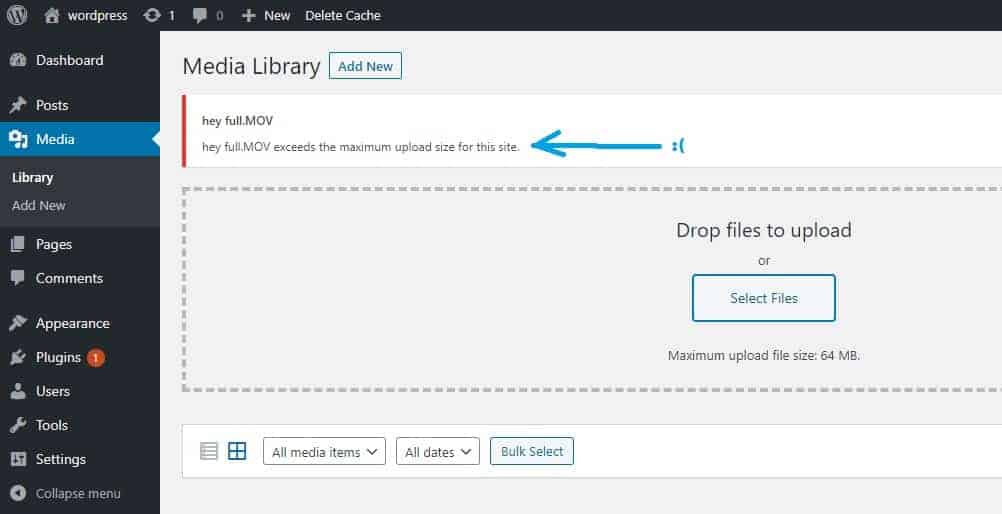
This is what happened when we tried to upload Pixie’s Hey cover from my college band. WordPress said no, or in its own words, hey.MOV exceeds the maximum upload size for this site.

WordPress accounts have a maximum upload file size, and won’t allow you to upload files that exceed it

The restriction on upload file size can come from several places – but it’s most likely related to the default limit set by your host. While the issue can be frustrating, there’s an easy way to fix it. In other words, there are tricks to increasing the maximum upload file size on your WordPress account, and we’ll teach you how to do it!

Here’s an overview of the steps you can take to increase the maximum upload file size on your WordPress:

  • Increase the Maximum Upload File Size in Multisite
  • Change the Settings in cPanel
  • Change the Settings in Your .htaccess File
  • Change the Settings in Your php.ini File
  • Changing the php.ini File On NGINX
  • Change the Settings in Your .user.ini File
  • Change the Settings in Your wp-config.php File
  • Change the Settings in Your Theme or Plugins Main File
  • Try Using a Plugin
  • Contact Your Web Hosting Provider.

Keep in mind that if you don’t want to go through the hassle of manually adjusting the code, or if you’re certain that the limit is restricted by your web host, you can just skip to the last step and directly contact your web hosting provider. Their tech support should solve the issue for you in no time!

Let’s first look at what causes this issue, and then what you can do to manually increase the maximum upload file size for your WordPress website. After all, the world should be exposed to our college band’s Hey cover.

Why Is My Upload File Size Limited?

The upload file size limitation is generally set by your host. Most hosts will keep the limit low by default, so it’s the server itself that is set to restrict the size of the files. Depending on the default settings of your web host, the maximum upload size in your WordPress can range from 2MB to 150MB.

This means that usually, the upload file size limitation is not related to WordPress, so – sadly – you probably won’t be able to get it fixed through WordPress.

The reason why hosts limit the upload file size has to do with security and efficiency. If too many websites are uploading files that are too large, there’s a good chance that:

  • Your website will load slowly.
  • Too many websites with large files can cause issues with the server, even to the point of it crashing.

In fact, you shouldn’t be uploading media files that are too large, anyway. They will mess up your website’s loading speed and decrease your SEO rankings. (You can check out how to optimize images for web and performance right here.)

While that makes sense, a maximum upload file size of 2MB is practically nothing. If you want to add some color to your website, a 2MB limit will allow you to maybe add a low-quality, pixelated, B&W image, and have to call it a day. And that just won’t do.

Before we get started on how you can increase the WordPress maximum upload file size, you can check the limit on your own WordPress account and see what you’re working with.

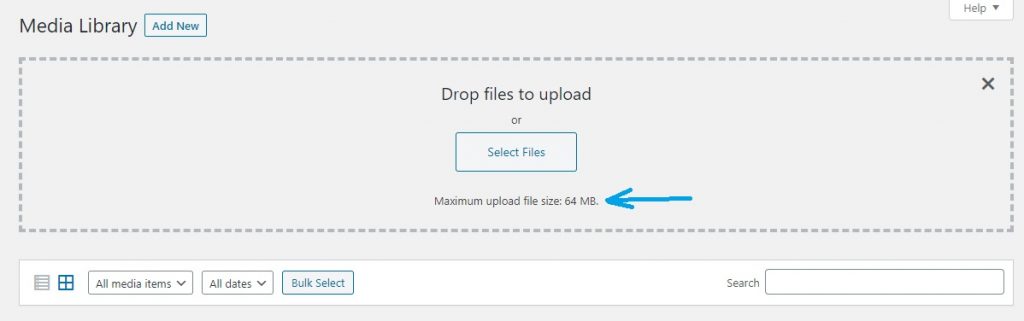
To do this, open your WordPress website, and from the admin dashboard go to Media > Add New. The window will kindly let you know what the default maximum upload file size is:

How to check the maximum upload file size on your WordPress

Not happy? Didn’t think so. Let’s look at how we can change that with a few simple solutions.

How to Increase the WordPress Maximum Upload File Size

There are a number of ways you can increase the maximum upload file size in WordPress. Let’s start with the easier options, and move onto the ones that are slightly more challenging. Keep in mind that which of these solutions you can employ depends on the WordPress and host settings.

1. Increase the Maximum Upload File Size in Multisite

Yes, we said that generally this issue can’t be fixed from WordPress – but the exception is if you’re running a multisite. Keep in mind, however, that the maximum upload file size will still be limited by your server. So if the server limit is 15MB, you won’t be able to increase the maximum upload size to something like 25MB for your multisite.

However, if your server’s upload file size limit is 20 MB, but the limit of the default network settings is 10MB, you can easily increase the maximum upload file size. To do this:

  1. Go to the WordPress admin dashboard > Network Admin > Settings.
  2. Scroll down to Max upload file size.
  3. Increase the maximum upload file size to what your server allows, so in this case, set it to 20MB, or, 20,000KB.
  4. Click on Save Changes.

That’s it!

If you need to change the server’s maximum upload size settings, keep reading.

2. Change the Settings in cPanel

If your host uses cPanel, increasing the maximum upload file size will be quite easy. Just access cPanel’s user interface, and take the following steps:

  1. Go to Software > Select PHP Version.
  2. In the top-right corner of the resulting window, select Switch to PHP Options.
  3. Change the number values of memory_limit, post_max_size, and upload_max_filesize. (Note: Rather than MB, it will say M.)
  4. Click on Save.

You should now be able to upload larger size to your WordPress website.

3. Change the Settings in Your .htaccess File

If your web server uses Apache, you can edit the PHP Apache module from the .htaccess file to increase the maximum upload file size for your WordPress website. The .htaccess file is a hidden file which contains a number of your server’s settings which you can adjust – like the maximum upload file size.

To do this:

  1. Connect to your server via FTP client.

(If you don’t know how to do this yet: open your browser or file explorer, and type in ftp://[FTP-server-IP-or-domain-name], where server IP or domain name are your server’s IP or domain name, then press Enter. Write in your username and password and select Log On to connect to your FTP server.)

  1. Navigate to the WordPress folder.
  2. From the Root directory, look for the .htaccess file. (Note: if it isn’t there, your server has limited your access and this method won’t work for you.)
  3. Open the .htaccess file in any text or code editor, like Notepad.
  4. Change the PHP values concerning maximum upload file size. For instance, you can add the following lines if the new limitations suit you:

php_value upload_max_filesize 64M

php_value post_max_size 128M

php_value memory_limit 256M

php_value max_execution_time 300

php_value max_input_time 300

You can always change the values if you want more or less file upload space. Again, M stands for MB. The execution and input time are set in seconds.

4. Change the Settings in Your php.ini File

Unless your web host has restricted your access to the server settings, you can increase the maximum upload file size on your WordPress via your php.ini file. This is the default file for configuring programs that run on PHP. To change the settings in your php.ini file:

  1. Connect to your server via FTP client.
  2. Go to the root directory and open the php.ini file. If it isn’t there, create it.
  3. If the file already existed, search for the following settings and modify them.
  4. If you created the file, open any text editor (like Notepad), and paste the following lines:

upload_max_filesize = 64M

post_max_size = 128M

memory_limit = 256M

Again, these values are just examples. You can modify them per your needs.

  1. Save the file as php.ini and upload it to your root directory.
  2. Check if it worked! Try uploading a larger file to your WordPress website. If it didn’t work, it may be because you need to edit the settings in your .htaccess file as well (this happens with shared hosts). So…
  3. Go to your .htaccess file and add these lines at the top of the file:


suPHP_ConfigPath /home/username/public_html

Where it says username, insert your own username.

5. Changing the php.ini File On NGINX

If your website is running on NGINX, the procedure with changing the php.ini file is slightly longer. NGINX is a great alternative server software, and is often faster than Apache. So, if your server uses NGINX, there’s an additional step when you update your php.ini file to increase the WordPress maximum upload file size.

After completing the previous steps, you need to access your NGINX config and add the following code:

http {
client_max_body_size 128m;
}

Make sure that you only adjust the settings to client_max_body_size. Accidentally changing any other settings can bring up more issues!

Lastly, you’ll need to reload some functions for the changes to take place. Copy the following commands:

service php5-fpm restart

service nginx reload 

Finally, try uploading a larger file and see if it worked!

6. Change the Settings in Your .user.ini File

If your host has limited your access to the global settings, you can try reconfiguring the settings in your .user.ini file. To increase your WordPress maximum upload file size from the .user.ini file:

  1. Connect to your server via FTP client.
  2. Go to the root directory and open the .user.ini file. If it isn’t there, create it.
  3. Copy the following lines:

upload_max_filesize = 64M

post_max_size = 128M

memory_limit = 256M

Again, adjust the values as you desire.

7. Change the Settings in Your wp-config.php File

If nothing worked so far, you can try editing the settings in the wp-config.php file. To do this:

  1. Connect to your server via FTP client.
  2. Find the wp-config.php file in your root directory.
  3. Open the file in a text editor, like Notepad.
  4. Add the following lines:

@ini_set( ‘upload_max_size’ , ’64M’ );

@ini_set( ‘post_max_size’, ‘128M’);

@ini_set( ‘memory_limit’, ‘2565M’ );

Save the changes and upload the file back to the root directory.

8. Change the Settings in Your Theme or Plugins Main File

In some cases, adding the same lines to your WordPress themes or plugins’ functions.php file can work to increase your upload file size. We don’t recommend this as a permanent solution, however, as it may cause other issues in the long run. So as a temporary measure – because you really need to upload that high-resolution photo of you doing a headstand – you can try this method.

  1. Access the functions.php file of your WordPress themes or plugins.
  2. Insert the following code:

@ini_set( ‘upload_max_size’ , ’64M’ );

@ini_set( ‘post_max_size’, ‘128M’);

@ini_set( ‘memory_limit’, ‘2565M’ );

9. Try Using a Plugin

You can try using a plugin to increase your maximum upload file size. However, this won’t work beyond the limit set by your hosting provider. So, if the case is that the default settings have a limit which is lower than the actual possible limit of upload file size, you can increase it using a plugin. However, if the maximum file size is the same as the default limit in the server settings, you won’t be able to increase the maximum upload file size with a plugin.

Let’s try it anyway.

We picked Imagify’s Increase Maximum Upload File Size plugin. This plugin automatically detects the maximum upload file size determined by your server and WordPress, and displays them for you. If you see that the limit is higher than what’s currently specified on your WordPress website, you can change it!

In some cases, you can try increasing the maximum upload file size on WordPress using a plugin

To try this method:

  1. Go to WordPress dashboard > Plugins > Add New.
  2. Search for Increase Maximum Upload File Size. Add and activate the plugin.
  3. Go to the plugin’s general settings. This is where you’ll see the maximum upload file size set by the hosting provider’s server, and find out if you can change it.

The Increase Maximum Upload File Size plugin allows you to see the limit and adjust it if you can

As you can see from this screenshot, the plugin informs us that the maximum upload file size set by the hosting provider is 64MB. So we won’t be able to increase the limit from the plugin beyond that. However, if the maximum upload file size was set to something like 16MB, you can now increase it all the way to 64MB!

  1. Click on the new limit, then select Save Changes.

10. Contact Your Web Hosting Provider

This can be the first or the last step you attempt. It’s always a good idea to contact your web hosting provider, since they can adjust your maximum upload file size for you, allowing you to focus on other aspects of your website. Let us handle the code, it’s what we’re here to do!

If you’re using DomainNameSanity, you can easily contact our team by submitting a ticket or writing an email. You’ll get a swift response and the issue will be resolved promptly.

You can get in touch with us from our website

Most of the solutions to increasing your WordPress maximum upload file size won’t work if you’re on a shared hosting package, so the best thing to do here is again to contact your web host.

Since the limit is usually set by your host’s server settings, you may find it difficult or impossible to change the settings yourself. Reaching out and asking for help is the easiest way to fix the problem. The host’s tech support will increase your WordPress maximum upload file size limit in no time!

Conclusion

In conclusion, you got this! Changing a few lines of code can go a long way in getting issues resolved, like busting that maximum upload file size limit for your WordPress website.

We hope that our guide was clear, and that you were able to change the upload file size settings with one of the solutions we provided. Contacting your web host is also a great idea, and oftentimes it can be the best way to increase the maximum upload file size for your website.

If you’re our client – or want to be – you can check out our web hosting plans for WordPress, Joomla, Drupal, and Magento hosting. Our tech support is always one click away!

View Related Articles

9 Best WordPress Security Plugins to Keep You Protected

Money doesn’t grow on trees (or at least that’s what they say). That’s why a lot of the time, we try to cut costs wherever possible. And it’s not for nothing – being smart with your spending is always a good idea. Why dough out $100 on a brand-name t-shirt when you can get the…

10 Ways to Increase the WordPress Maximum Upload File Size

One of the first things you unhappily discovered on your new WordPress website is that there’s a limit to the size of the files you can upload. Especially if you were excited to spice your website up with some hefty media files, you were probably left disheartened to learn that the…

8 Ways to Fix ERR_TOO_MANY_REDIRECTS in WordPress

When you’re managing your own website, you’re bound to come across some glitches and errors. While some of them can get annoying, it’s kind of part of the fun of running a website. The issue is a bother, but once you fix it, don’t you feel good about yourself?…
8 Ways to Fix ERR_TOO_MANY_REDIRECTS in WordPress

When you’re managing your own website, you’re bound to come across some glitches and errors. While some of them can get annoying, it’s kind of part of the fun of running a website. The issue is a bother, but once you fix it, don’t you feel good about yourself? Like, I wish my highschool computer science teacher could see me now, sort of good.

Anyway, ERR_TOO_MANY_REDIRECTS is one of the common error codes that can appear on your WordPress website. It usually happens after problematic recent changes, a misconfiguration on the server, or incompatibilities in the settings.

In any case – don’t worry! The ERR_TOO_MANY_REDIRECTS error is easy to fix, and you’ll be feeling good about your mad PC skills in no time.

ERR_TOO_MANY_REDIRECTS is a common error on WordPress – but it’s easy to fix!

What Causes ERR_TOO_MANY_REDIRECTS?

The ERR_TOO_MANY_REDIRECTS error is pretty self-explanatory – it’s an issue of too many redirects.

For instance, URL A leads to URL B, which leads to URL C, which leads back to URL A, which leads to URL B, which leads to URL C, and – you see the problem – it goes on in an infinite redirection loop.

So the browser – rather than pointlessly, endlessly proceeding through the loop – informs the site visitor that there’s an issue. ERR_TOO_MANY_REDIRECTS means that the website is in a redirection loop due to some misconfiguration.

The infinite redirection loop error sounds ominous – but there are simple solutions to it

Basically, the cause of the ERR_TOO_MANY_REDIRECTS issue is misconfiguration related to the website. From WordPress’ SEO-friendly URL structure and various SEO plugins that use the redirect functionality, to the WordPress SSL and cache plugins which also use redirects, the chances of a misconfiguration happening somewhere along the way aren’t too slim.

This means that the ERR_TOO_MANY_REDIRECTS may be caused by:

  • your WordPress settings,
  • your server settings,
  • any of your various caches,
  • new or recently updated plugins,
  • SSL or URL incompatibilities,
  • unsuccessful HTTP to HTTPS migrations…

But don’t worry about all this! We’ll take you through the process of troubleshooting and fixing the problem step by step.

Variations of ERR_TOO_MANY_REDIRECTS Across Browsers

You may get different error messages, depending on which browser you’re using. Essentially, they’re all dealing with the same issue, and are fixed in the same way.

Google Chrome

Chrome is our go-to example. The page will say:

“This page isn’t working.”

“www.domain.com redirected you too many times.”

“Try clearing your cookies.*”

“ERR_TOO_MANY_REDIRECTS”

OR

This webpage has a redirect loop problem.”

It’s pretty clear what the issue is.

Microsoft Edge

Microsoft Edge is the only browser apart from Chrome that will show the same exact error code below the error message. This is what the page will show:

“This page isn’t working right now.”

“www.domain.com redirected you too many times.”

“ERR_TOO_MANY_REDIRECTS.”

Mozilla Firefox

If you’re using Mozilla Firefox, the error message will read:

“The page isn’t redirecting properly.”

“An error occurred during a connection to www.domain.com. 

  • This problem can sometimes be caused by disabling or refusing to accept cookies.*”

Safari

Safari will say:

“Safari Can’t Open the Page”

“Too many redirects occurred trying to open “www.domain.com.” This might occur if you open a page that is redirected to open another page which is then redirected to open the original page.”

Bottom Line: As you can see, each browser makes it pretty clear that it’s a redirection issue.

Now, we’ve conveniently placed a * next to two lines – one in the Chrome window and one in the Mozilla window to draw your attention to the first and easiest possible solution to the issue – cookies.

How to Fix ERR_TOO_MANY_REDIRECTS in WordPress

Let’s look at several simple solutions to the ERR_TOO_MANY_REDIRECTS error.

1. Try Clearing Your Cookies

“Try Clearing Your Cookies” is advice straight out of the error message that Chrome will show. Mozilla suggests the same. Clearing your cookies is the easiest and simplest way to try to get the website to work again. This method can work both on your own website and on another website that you’re just visiting.

Cookies basically save the login status and various other settings on sites that you frequent. Refreshing this information, by clearing the cookies, can solve the redirect issue.

Here’s how to clear your cookies:

  1. Click on the Customize and control Google Chrome button in the right-hand corner of your screen. Select Settings.

Select Settings from the drop-down menu

  1. Scroll to the bottom of the resulting window, and click on Advanced.

The Advanced option will be at the very bottom of the list of settings

  1. Find Site Settings from the list, and click it.

Go to Site Settings to remove cookies

  1. Click on Cookies and site data. Phew, almost there!

Select Cookies and site data

  1. Select See all cookies and site data.

Almost there…

  1. Write the name of the website URL into the Search cookies bar. Then, when it pops up in the list below, click on the trashcan to delete all the cookies on that website.

Delete the cookies for the specific website

Now, you can refresh the page where the ERR_TOO_MANY_REDIRECTS error had appeared.

If you want to get rid of all your cookies for all your sites, once you’ve selected Advanced, go to Clear browsing data, and then tick the box only next to cookies, like so:

This will clear all cookies from all sites

And click on Clear data.

Again, refresh the website that displays the error code. Did it work? Hopefully. If not, let’s see what you can try next.

Bottom Line: Clearing your cookies is the easiest possible solution to fixing the ERR_TOO_MANY_REDIRECTS issue.

2. Clear Browser Cache

We will go over clearing all kinds of caches, but let’s start with the easiest – your browser cache.

Before clearing your browser cache (you may, after all, have reasons for being attached to it), there’s an easy way to first check if it’s the browser cache indeed that’s causing the issue.

To do this, open Chrome in Incognito mode by clicking on the Customize and control Google Chrome button and selecting New Incognito Window, or simply pressing SHIFT+CTRL+N.

Incognito travels light – without the baggage of the browser cache – so if the website opened without the error message, you need to clear your browser cache.

To do this, you pretty much need to follow similar steps as the ones we showed for clearing all cookies. Or take this shortcut:

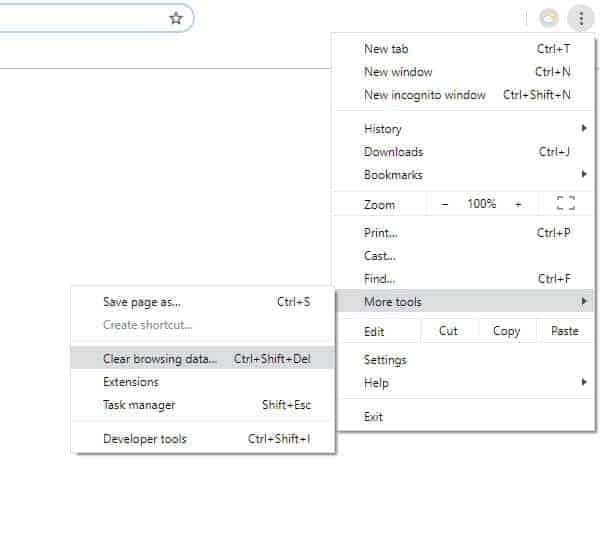
Customize and control Google Chrome > More Tools > Clear browsing data.

This is a quicker way to clear your browser cache

Check the box next to Cached images and files, and select Clear data.

Bonus Tip: You can kill two birds with one stone and delete your browser cache and cookies all at once. Go to Customize and control Google Chrome > More tools > Clear Browsing data and check the boxes next to both Cached images and files and Cookies and other site data and then click on Clear data.

3. Clear WordPress Cache

If your browser cache wasn’t causing the problem, clearing the cache on your WordPress site is the next thing you should try. (Keep in mind that you’ll only be able to do this if you can access your WordPress admin page. If the redirect loop is happening on the admin page itself, skip to the next solution.)

The best way to clear your WordPress cache is by using a caching plugin. The most popular options are W3 Total Cache and WP Super Cache.

If you don’t have a caching plugin, install one! A caching plugin can help with your search engine and performance optimizations (SEO & WPO).

We’ll use WP Super Cache as an example. To clear your WordPress caching:

From your WordPress admin dashboard, select Settings > WP Super Cache.

The WP Super Cache page will open. Click on Delete Cache to clear the cache on your WordPress site. Then, reload the site and see if the problem was fixed.

Click on Delete Cache to clear your cache, then reload the page to see if it worked

4. Clear Server Cache

If you can’t clear your WordPress site cache from the admin board because it’s fallen prey to the dreaded loop, you can clear your cache directly from your server. And mind you, server cache is not infrequently the culprit of the ERR_TOO_MANY_REDIRECTS error.

Most WordPress hosts offer a control panel that you can access and use for various tweaks and modifications. Access the control panel provided by your host, and clear the website cache directly from there.

Refresh the page, and see if you can now access the site.

5. Clear Proxy Cache

Are you using a proxy to improve your website’s security and performance? That’s smart! A part of a proxy’s job is to have its own caching net. So if you’re using a proxy, you’ll need to clear its cache too, in order to fix the ERR_TOO_MANY_REDIRECTS issue.

The two most popular proxies are Cloudflare and Sucuri.

Sucuri

Clear your cache on Sucuri via the Sucuri dashboard

If you’re using Sucuri, log in through their website. Then go to Performance > Clear Cache.

Cloudflare

You can also clear your cache on Cloudflare by logging into their dashboard

To clear your cache on Cloudflare, login to their website, select Caching > Purge Everything.

After clearing the cache on either proxy, try to open the website that displayed the ERR_TOO_MANY_REDIRECTS error and see if you can open it now!

Bottom Line: The different types of cache may be causing the ERR_TOO_MANY_REDIRECTS issue on your WordPress site. Clear each cache and reload the page to see if the problem was resolved.

6. Check WordPress URL Settings

One of the most common causes of the redirect loop is an inconsistency with your WordPress address URL or site address URL. But let’s take it one step at a time.

What does it mean that there is an inconsistency in the website URL?

When you buy a domain from your host, you choose the URL address of your website. Generally, hosts will give you the option of adding the www prefix to the domain name or not. So for instance, your domain may be http://domain.com or http://www.domain.com.

When you begin setting up your page on WordPress, you go to Settings > General, and write the domain name in the two URL lines: WordPress Address (URL) and Site Address (URL).

If you accidentally wrote the URL into WordPress with the www prefix, but specified the domain name without the www prefix when you got it from your host, this inconsistency between the URL’s is causing the ERR_TOO_MANY_REDIRECTS error. The same is true of the opposite – if you originally purchased the domain name with www but wrote it without www into WordPress.

So what happens in such a case, is that a visitor comes to http://domain.com, but is then redirected by the server to http://www.domain.com, which will redirect them back to http://domain.com, since that’s what you’ve written into the WordPress URL line, and so the loop begins, resulting in the ERR_TOO_MANY_REDIRECTS error.

If You Have Access to WordPress:

To fix this from WordPress, go to Settings > General, and change the WordPress and Site Address URLs.

Check if the URL written into your WordPress General Settings is correct

If you think that you’ve written the wrong domain, and it’s missing a www or shouldn’t have a www, just rewrite the correct address into the WordPress Address and Site Address URLs.

Note: Make sure to add the slash at the end of your URL: http://domain.com/

If You Don’t Have Access to WordPress:

You may not be able to access your WordPress dashboard if the loop has “infected” your admin page.

To change the site URL without access to the admin dashboard:

  1. Connect to your website via FTP client.
  1. Find wp-config.php in the root directory.
  1. Download the file and edit it into any text editor program, like Notepad.
  1. Add the following two lines to the file, putting your domain name where we’ve written “domain:”

define(‘WP_HOME’,’http://domain.com’);

define(‘WP_SITEURL’,’http://domain.com’);

  1. Save the file and close it. Then, upload it back to the web server.
  2. Try to reopen your WordPress website. If this didn’t work, try the same thing, but add www to the code, like so:

define(‘WP_HOME’,’http://www.domain.com’);

define(‘WP_SITEURL’,’http://www.domain.com’);

  1. Try to open your website again.

If this didn’t work, the misconfiguration between the URL addresses may be on your host’s end. If you think that this is the case, contact your web host and let them know about the problem. They should look into it and get it fixed!

Bottom Line: Incompatible URL addresses can be causing the ERR_TOO_MANY_REDIRECTS problem. Make sure not to forget the www if it’s supposed to be there, and make sure to omit it if it isn’t!

7. Deactivate Plugins

A lot of the time, plugins use redirection functions for various purposes. So, the ERR_TOO_MANY_REDIRECTS issue may be caused by one of your plugins. But which one?

An easy first step is to think whether you recently installed a new plugin or updated an existing one. If so, this plugin is probably the culprit.

Disabling Plugins from the WordPress Admin Dashboard

If you can access your WordPress admin dashboard, open the Plugins tab on the left, then click on Deactivate next to the guilty plugin, and refresh the site that was displaying the error to see if it worked.

If you’re not sure which plugin is responsible for the error message, disable all plugins. To do this, select Plugins and then click on Deactivate from the bulk actions menu.

Deactivate all plugins from the Bulk Actions menu

Refresh the page and see if it worked. Now, you can activate your plugins one by one, and see which one causes the ERR_TOO_MANY_REDIRECTS when activated. Make sure to reload your webpage after activating each plugin. Once you find the culprit, deactivate it. You can also contact the plugin developer or post a support ticket to WordPress and ask them to fix the issue.

Disabling Plugins If the WordPress Admin Dashboard Isn’t Working

It’s still possible to disable one – or all – of your plugins even if you can’t access the WordPress admin dashboard.

Hopefully, your host has provided you with access to your FTP server.

  1. Connect to your website via FTP client.
  1. Go to WordPress installation directory.
  1. Find the wp_content/plugins folder.

Now, you have two choices. If you want to only disable one plugin that you think is causing the trouble, find it in the plugins folder and rename it. So if it was called example, rename it to example_old. Refresh your website, and see if it worked.

If you’re not sure which plugin was causing the issue, proceed:

  1. Rename the plugins folder to something like plugins_old. This step deactivates all your plugins.
  1. Try to access your WordPress admin dashboard. If it loads successfully, it means that one of the plugins was causing the issue.
  1. Go back to FTP and rename the plugins folder plugins again, which will reactivate all plugins. Now you need to test the plugins one by one, to see which one is causing the issue.
  1. Rename each plugin folder one at a time to deactivate them individually. Reload the WordPress admin dashboard after each deactivation. If the site works when a particular plugin is deactivated, it means that that’s the plugin that was causing the problem.
Bottom Line: Various plugins use redirect functions, and they may be the cause of your issue. There are easy ways to deactivate your plugins and fix the problem, regardless of whether you have access to your WordPress admin dashboard or not.

8. Check HTTPS Settings

Another common cause of the ERR_TOO_MANY_REDIRECTS error is due to misconfiguration of the HTTPS settings. This can happen if you recently switched to HTTPS from HTTP, and the moving process either wasn’t completed properly, or something in the process wasn’t done properly.

Do You Have an SSL Certificate?

If you migrated your site to HTTPS but you failed to install an SSL certificate, it’s likely that this is causing the redirect problem. Your WordPress site is trying to load over HTTPS and ending up into a redirection loop.

To fix this, you basically need to install an SSL certificate. Once you’ve installed a valid SSL certificate, your WordPress website will begin to work properly.

To be on the safe side though, you should also run an SSL server test, to see if all necessary SSL and TLS certificates are in order (including intermediate certificates). We recommend using Qualys, which offers free SSL server tests.

Simply enter your website domain in the bar next to Hostname and hit enter.

An SSL server test can show you if there are any issues with your website certificates

After a couple of minutes, Qualys will provide you with the results. It will specify certificate issues (if any), so that you can go about fixing them yourself, or asking your host for help.

Are You Using an SSL Plugin?

In order to quickly migrate your WordPress website to HTTPS, you used one of the free SSL WordPress plugins. These plugins work by automatically redirecting your website to an HTTPS version. While this may be a nice short term solution, it doesn’t work well in the long run, and it may cause problems. (For a long term solution, we advise that you properly update your hard-coded HTTP links and get a proper, valid SSL certificate.)

The issue with free SSL plugins is that they often come with glitches and various compatibility issues. So get rid of your SSL plugin and migrate your website to HTTPS the harder – but right – way.

Check the HTTPS Redirects on Your Server

As we’ve already mentioned, the redirect loop may be an issue stemming from your server. Before you contact your host, there’s an easy way for you to check if the redirect code from HTTP to HTTPS was misconfigured, and fix it yourself.

If Your Server Runs Nginx:

To redirect HTTP traffic to HTTPS on a WordPress website running on Nginx:

  1. Find the Nginx config file.
  1. Add the following code to the file:

server { listen 80; server_name domain.com www.domain.com; return 301 https://domain.com$request_uri; }

If Your Server Runs Apache:

To redirect HTTP to HTTPS on a WordPress website running on Apache:

  1. Find your .htaccess file.
  1. Add the following code to the file:

RewriteEngine On

RewriteCond %{HTTPS} off

RewriteRule ^(.*)$ https://%{HTTP_HOST}%{REQUEST_URI} [L,R=301]

Run a HTTPS Redirect Test

For one reason or another, the ERR_TOO_MANY_REDIRECTS may be caused by too many HTTPS redirects. The easiest way to check this is to run a HTTPS redirect mapper test, like this one.

Enter your URL and hit enter – the results of your website’s HTTPS redirects will be ready within seconds

If your redirects have a clean setup:

  1. At least one – to all – options will have a maximum of one redirect. In this example, we’ve got one with none, one with none, and two with two redirects – which is pretty good.
  1. All options will end up at the same URL.

Run this test to see if there’s an issue with the way that your website’s redirects are set up.

Bottom Line: Misconfigured HTTPS pathways or HTTP to HTTPS migration can be the cause of the ERR_TOO_MANY_REDIRECTS error code. Go through the various steps to ensure that everything is in order, and if the problem persists, contact your server.

Conclusion

While the ERR_TOO_MANY_REDIRECTS can be frustrating, these simple solutions should help you fix the issue and get your website up and running again!

The error is most commonly caused by various misconfigurations or incompatibilities (between URLs, caches, plugins, and so on). Troubleshooting the issue step by step will help you solve the error and get a better idea of what’s happening behind the scenes of your website, and what allows it to be functional. (Yep, fumbling with code can be quite humbling!)

Keep in mind that we recommend you try the solutions one by one, as we begin with the easiest and proceed with the slightly more challenging ways of solving the ERR_TOO_MANY_REDIRECTS issue. Clearing the cache and cookies, for instance, is a go-to first solution for most browser error codes, including error messages such as Your Connection is Not Private and DNS_PROBE_FINISHED_NXDOMAIN.

If you tried everything and the problem persists, don’t shy away from contacting your web host and asking for help. They can troubleshoot the redirection loop as well, and track down the cause of ERR_TOO_MANY_REDIRECTS. If you have access to your WordPress admin dashboard, you can also leave a support ticket in the WordPress repository letting them know about your problem.

View Related Articles

Why Are My Emails Going to Spam?

There is no experience more frustrating than having your emails end up in the spam folder of your recipients rather than their inboxes. If you’ve found that your emails are going to spam instead of your subscribers’ inboxes, keep reading to find out why.

How to Become Tech Savvy

In a world where technology shapes our society and everyday life, knowing how to operate a computer and other common tech gadgets becomes a survival skill.

What two protocols are used to deliver mail messages?

Emailing today is such an easy task. Compose, hit send, and your message travels across oceans and borders to reach its recipient. It is such an easy task that people’s attention starts to drown in their full inboxes, which are also littered by spammers, phishers and other members of the not-so-nice population of netizens.

What Is the WordPress Admin Dashboard? Explained for Beginners

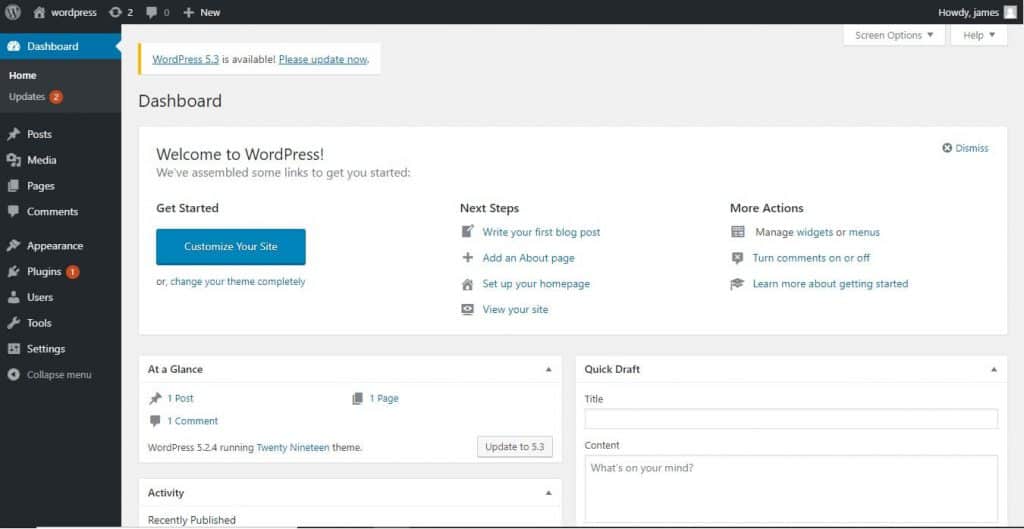
The WordPress admin dashboard holds the control settings for your WordPress website. This is where you create and edit content, upload images and text, choose themes, add plugins, assign roles to multiple users, and much more.

While the WordPress interface is quite user-friendly, it may be a bit confusing at the start, especially if you don’t consider yourself to be very tech-savvy. Creating a website sounds like a big deal, right? Well, it isn’t! With a bit of help and guidance, you’ll find the admin dashboard quite easy to use.

After reading this simple introduction for beginners you’ll see that you’re quite ready to utilize every function of the WordPress admin dashboard to build your ideal website.

The Interface of the WordPress Admin Dashboard

We will go over how you can use the WordPress admin dashboard to configure the look and functionality of your website. You’ll learn where to find your dashboard on WordPress, what it has to offer, and how you can use it to take control of your website and customize it to your liking!

Knowing how to use the WordPress admin dashboard will help you expand your website, be it for a business, for entertainment, or for a personal blog. But first things first…

How Do I Log Into My WordPress Admin Dashboard?

A frequent question that we get asked by beginners to WordPress is where do I find my dashboard on WordPress? The answer to where you find the dashboard and how to log in is one and the same.

To access your WordPress admin dashboard, just add /wp-admin/ at the end of your website’s URL. For instance, this is what it should look like:

https://www.yourdomainname.com/wp-admin/

If you’re already logged in, this link will directly take you to the admin dashboard. If you’re not logged in, WordPress will redirect you to the login page where you will need to enter your username and password to access the admin dashboard.

Alternatively, if you know you’re not logged in, you can append /wp-login.php to your website’s URL. Here’s an example:

https://yourdomainname.com/wp-login.php

WordPress admin dashboard login page

But before we get into the overview of what you can do from the WordPress admin dashboard, we’ll go over two important points for beginners concerning your login page.

How To Change Your Default Login URL

Pro Tip: Change your default login URL.

You may not be aware of it, but it’s just as easy for hackers to access your default login URL as it is for you. If your login URL is exactly what we have presented (i.e. https://yourdomainname.com/wp-login.php), then any bot or hacker will be able to discover it.

One way to improve security is to use a strong password, but this isn’t always enough.

Website security is very important. This additional step takes little time, but significantly improves security. Plus, in addition to keeping you safer from online attacks, changing your login URL will decrease the amount of bandwidth that gets eaten up by bots accessing it. When bots randomly open your login URL, WordPress counts it as bandwidth being spent by you.

Don’t worry though, changing your default login URL is easy and won’t complicate the login process for you. The easiest way to change your default login URL is by using a plugin.

We recommend using the WPS Hide Login. This handy WordPress login is free, uses very little space, and doesn’t change anything on your WordPress. It simply intercepts and redirects requests to access your login URL.

Download the WPS Hide Login Plugin for your WordPress website

Once you download the WPS Hide Login plugin, just select it from the Settings options in the admin dashboard panel. From there, you can choose the new login URL that you will use. You will also create a redirect URL for hackers and bots.

When these pesky threats try to access your login URL using /wp-login.php, they’ll be at your mercy! You can go for the standard 404 NOT FOUND, or you can get creative.

How To Use the WordPress Admin Dashboard: Overview

Add a new post from the WordPress admin dashboard

When you access your WordPress admin dashboard, you’ll see an overview of all your website’s functions and activities. At first glance, the admin dashboard serves to update you on what’s been going on on your website. This includes notifications about activity on your web pages and notifications about WordPress and plugin updates.

At a second glance, it allows you to edit and tweak the content and functionality of your website.

On the left side of the screen, the admin panel and toolbar offer all sorts of activities. This panel allows you to select from the menu and submenu items to get around your web page. You can view, edit, and upload new posts, manage your media, respond to visitor comments, and so on. You can also update your WordPress to a newer version, install or deactivate plugins, and play with different themes.

If your website has multiple contributors, you, as an admin, can also assign roles and limit accessibility for different users.

But let’s go through all the main functionalities step-by-step.

How To Create A New Post

Underneath the Dashboard bar on the left side panel, you can see a bar that says Posts. Simply click on Posts (or hover over it, depending on your WordPress version), then select Add New from the submenu items.

How to add a new post on WordPress

Your dashboard overview will be replaced by a page that resembles GoogleDocs, where you can easily insert text and other content, adjust headings.

How to write a post in WordPress

If you’re trying to edit a previous post, instead of Add New, select All Posts from the submenu. From here, you can select past posts and edit their content.

How To Create A New Page

You can create a new page just as easily. Once again, find the Pages option underneath the Dashboard bar. Click on it (or hover over it), and select Add New from the resulting submenu items.

How to add a new page in WordPress

Adding pages is quite useful if you’re trying to make a versatile website. You can use this feature to easily direct visitors across the different content on your website. For instance, in addition to a Home page, you can have an About page, a Product page, an Archive, a Contact page, and so on.

How To Change the Appearance of Your Website

You can create and adjust the look on your website from the WordPress admin page. Look for the Appearance option from the sidebar. Hovering over it or selecting it will result in submenus that will allow you to:

  • install new themes,
  • change old themes
  • control your widgets and menus.

How to add a theme to WordPress

Themes basically dictate the look of your website. WordPress offers thousands of theme options you can choose from. Browsing through the sea of choices can lead you to finding the ideal look for your website.

You can also customize the themes and the page to your liking.

Go to Appearance > Customize. Under Customize, you can adjust different aspects of your selected theme. The interface that pops up to let you do this is called the WordPress Customizer.

The WordPress Customizer allows you to change the look and functionality of your website. With the Customizer, you can play with fonts, colors, layout and menu options on your website. Here are examples of what the Customizer offers:

  1. Changing the site title and tagline. You can see how your site title and tagline will look on your selected theme on a preview window on the right as you edit!
  2. Managing menus. Under the Customizer, you can go to the Menus tab, then select Add a Menu, write its name, and click Create Menu. You can come back to this menu and change its name, rearrange the menu options, add new ones, manage the menu’s location, and more!
  1. Changing the website colors. You can change the color scheme of your selected theme from the Colors option of the Customizer. This allows you to tweak the look of your website with very little effort! You can see what the change would look like in the preview. Keep in mind, however, that different themes offer different arrays of color options.
  1. Modifying your background image, adjusting the single post settings, changing mobile and tablet previews… Just do some exploring – the Customizer has a lot to offer!

How To Manage Your Plugins

You can add and manage your plugins from the admin panel. Plugins allow you to adjust the functionality and features of your website without knowing anything about coding. You can use them to improve your SEO, make an eCommerce store, add a chat option, and pretty much anything you can think of. As WordPress is an open-source CMS, developers from across the world create and share plugins. In fact, there are 54,000 free WordPress plugins, and additional paid, premium options.

You can select Plugins from the admin panel and install new plugins or manage existing ones.

How to add new plugins on WordPress

How To Manage Users

If your website has multiple contributors – writers, photographers, product developers, and so on – you can adjust their roles from the admin panel. This changes how much control each user has over the website.

Just select the Users tab from the panel to assign roles to different users.

Once you open the Users tab, you can select various users and manage their roles

How To Adjust the Look and Functionality of the Admin Dashboard

You can even adjust the look and function of the WordPress admin panel.

For instance, if there are some items that you don’t use, you can hide them from the dashboard. This will make your interface simpler, and your work more efficient!

Just click Screen Options in the top-right corner of the admin page and uncheck the boxes on the items you don’t use much or don’t want to see.

You can uncheck the boxes of the items you don’t want to see on your admin dashboard, if you want to reduce clutter

You can also change the default color scheme of WordPress admin dashboard and panel. If the classic blue-gray-black scheme isn’t doing it for you, just go to Users > Your Profile > New Admin Color Scheme. You’ll see a number of cool color scheme options to give your interface some edge.

Manage the color scheme of your WordPress admin dashboard

And Much, Much More…

Just do some exploring of the menu options of the WordPress admin panel! You’ll find that there’s lots more you can do – manage settings, comments, widgets…

As we’ve – hopefully – taken some of the confusion out of your WordPress experience, you can now boldly go forth and prosper! If you are looking for good quality WordPress hosting you should check out our hosting here.

Bonus: How To Fix Bugs On Your Login Page

Whether you’re new to WordPress or you’ve been using it for a while, you may all of a sudden be surprised to find that the /wp-admin/ extension doesn’t work. It may be redirecting you directly to the homepage or refreshing the login page, rather than to the admin dashboard.

Here’s how to fix that.

  1. Clear Cookies and Cache. Since WordPress uses cookies to authenticate logins, the best place to start is clearing your browser cookies and cache. Plus, or the authentication process to work, your browser must have cookies enabled. Following these two steps, restart your browser, and try accessing your admin login page again.
  1. Deactivate Plugins. There are thousands of useful plugins to choose from for your WordPress website – but sometimes they can cause login troubles. As logins are created from different users and for different purposes, sometimes these plugins come into conflict with one another! To deactivate all your WordPress plugins so you can login and see what the hell is going on, connect to your web host using FTP client. Then, change the name of /wp-content/plugins/ directory to plugins_backup. Now you can try logging in again!
  1. Deactivate Your Theme. As there can be conflicts between plugins, there can also be a conflict between themes and WordPress. Especially if you’ve upgraded your WordPress to a newer version, but your theme is only compatible with an older one, this can cause problems logging in. To fix this, once again connect to your web host using FTP client. Select /wp-content/themes/ and change the name to your theme directory. This will cause WordPress to go back to the default theme. If the issue was caused by theme incompatibility, you’ll now be able to login.

View Related Articles

9 Best WordPress Security Plugins to Keep You Protected

Money doesn’t grow on trees (or at least that’s what they say). That’s why a lot of the time, we try to cut costs wherever possible. And it’s not for nothing – being smart with your spending is always a good idea. Why dough out $100 on a brand-name t-shirt when you can get the…

10 Ways to Increase the WordPress Maximum Upload File Size

One of the first things you unhappily discovered on your new WordPress website is that there’s a limit to the size of the files you can upload. Especially if you were excited to spice your website up with some hefty media files, you were probably left disheartened to learn that the…

8 Ways to Fix ERR_TOO_MANY_REDIRECTS in WordPress

When you’re managing your own website, you’re bound to come across some glitches and errors. While some of them can get annoying, it’s kind of part of the fun of running a website. The issue is a bother, but once you fix it, don’t you feel good about yourself?…
What Is a Content Management System (CMS)?

A content management system (CMS) is a type of software which allows users to create, tweak, and publish content on their websites.

Content management systems provide an interface which you can use to make your own, self-hosted blog or website. In recent years, content management systems have become so simplified that anyone can use them without prior knowledge of coding, programming or web development.

The simple interface of WordPress, a popular CMS option

The user-friendly interface of content management systems has made it easy and popular for people to build their own websites. Individuals, businesses, eCommerce stores, magazines – in fact, every type of website – can be built using a CMS.

They also make the job of publishing pages online really simple, as any user can upload content directly from their PC to the internet!

What Does a Content Management System Do?

A content management system is structured to take care of all the dirty work for you, so you can build a website without fussing over the technical details.

Hiring a web developer to build you a website from scratch can be quite pricey. A CMS is a great cost-effective alternative, allowing you to create the website yourself.

But a CMS will take a lot of the load off your back. Rather than having to hire a developer to create a database and a system for your content, functions, and images, a CMS will do that for you, at a fraction of the price. A CMS has its own database and infrastructure that will allow you to upload and edit content with ease.

In fact, the user-friendly interface displays your content in an easy-to-manage presentation layer. Each CMS offers a set of templates that you can use to organize your website. Most content management systems come with thousands of different templates and plugins which you can choose from to adjust the look and functions of your website.

Another thing that a content management system does is it allows multiple users to work on the same web content. Which leads us to…

What is the Purpose of a Content Management System?

In addition to easily creating a website, the main purpose of a CMS is allowing multiple contributors to edit online content simultaneously. If you’re creating a website for a business, a social network, a forum, or an online magazine, for instance, you’ll probably have more people doing the work.

With a CMS, different users can edit and publish content from their computers. You’ll be able to see what others are doing, which avoids duplicates and makes delegating work very efficient. Plus, the admin can adjust the permission level of the various contributors to different parts of the website.

How Does a Content Management System Work?

Rather than writing a static HTML file, uploading it to your server, and tinkering with a bunch of other technicalities, the CMS provides a simple interface.

But to get a better picture of how it works, let’s look at WordPress, the most popular CMS which powers 34.8% of websites.

An example of the WordPress interface

As you can see, the bar on the left allows for easy navigation so you can edit the content, look, and function on your website. You can add and modify media, text, and plugins.

For instance, writing text is as simple as using any type of Word Document, be it Microsoft Word or GoogleDocs. You just select the “Pages” tab and click on “Text Editor” under “Basic Modules.”

You can copy a text to the box, or write it directly in the editor. As soon as your text is done and ready to be uploaded, click on “Publish Changes” and watch your text go online!

Uploading media is just as easy. Simply click on the “Media” tab, and drag and drop any file you like. Alternatively, you can click on the “Select Files” button and browse your media library to find the files you want to add.

As you can see from the image, you can also add plugins. Plugins adjust the functions of your website. You can use them for anything, like building an eCommerce store, adding an online chat room, boosting performance, or improving your SEO. Most content management systems offer thousands of free and premium plugins. The WordPress community alone offers over 54,000 free WordPress plugins.

Let’s Give you Some CMS Examples

Here are a few of our favorite content management systems and their perks:

WordPress

The WordPress homepage

WordPress is by far the most popular CMS option. Out of all websites on the internet, over 34% are powered by WordPress. Out of only CMS-built sites, over 60% were created using WordPress. Here are some of its top features:

  • It’s arguably the easiest CMS to use.
  • It has a user-friendly, intuitive interface. Great choice for beginners as well as pros!
  • A lot of editing options that will give you full control of your website and a sense of true ownership.
  • Thousands of free themes and plugins, which will allow you to easily customize your site.
  • Huge, helpful community! You’ll always be able to find an answer to any issues you may face from WordPress tutorials, blogs, and forums.

Drupal

The Drupal homepage

While WordPress holds the highest number of sites using it, Drupal has the highest share of high-traffic sites. Out of the top CMS options, Drupal is known to offer the best security against hacker threats. Here are some of its top features:

  • It offers excellent security for your blog or website.
  • Features versatility in terms of custom posts. Creating custom posts and management systems is very flexible!
  • Supports multilingual sites.
  • It provides an excellent taxonomy system and advanced user management and permission settings. This makes it a great choice for a website with multiple contributors.

Joomla

The Joomla homepage

Joomla isn’t as easy to use for beginners as WordPress, but does offer a greater deal of flexibility for certain types of websites. Particularly, managing custom posts – i.e., non-text content – is quite easy with Joomla. Like Drupal, it’s also a great choice for websites with multiple contributors. Here are our favorite features:

  • A lot of flexibility for custom post types
  • Offers multilingual support out of the box – you won’t need to add plugins to have multiple languages on your site.
  • Lots of versatility in terms of user management. Makes it a good choice for membership-based sites, like social media platforms.
  • You can use a variety of templates for different pages and content types.

Some other great CMS examples are Squarespace, Wix, TYPO3, Dotclear, and Serendipity.

What Can You Create Using a CMS Platform?

Originally, a lot of CMS platforms started off as blog-builders. Today, however, content management systems can be used to make any type of website, since they are highly customizable.

As CMSs offer a lot of flexibility in terms of content management, editing, and multiple contributors, they are used to build everything from blogs to eCommerce stores. Simple use of CMSs can lead to creating blogs, news and magazine sites, tutorial sites, entertainment sites, and so on. For instance, magazines such as Variety and Rolling Stone use WordPress. Some institutions, such as the White House or the City University of New York also use a CMS (WordPress again) to create and run their websites.

With a bit more work and some useful tools in your arsenal (read: plugins), you can also create more complex websites using a CMS. This includes eCommerce stores, forums, and social network-type platforms.

How do I Choose a CMS?

When choosing the best CMS for your website, here are a few important features you should look out for:

Highly Customizable Content

To give you a sense of ownership over your website, as well as allow you to achieve your vision, a CMS should offer great customizability. High customizability means a lot of themes, plugins, and flexible content editing features! In this way, you can easily control the look and functionality of the pages.

User-Friendliness

You want to make sure that your CMS is easy to use, especially if you’re not a web developer. Being able to quickly and easily publish new content will keep you motivated and happy with your site!

Flexible Management Options

You want to find a CMS that offers structured taxonomy, especially if your website has multiple contributors. This will help you divide up the work based on content!

Security

Security risks can be caused by unsafe passwords, shady plugins, and stubborn hackers. If you’re dealing with sensitive content, you want to make sure that your CMS provides excellent security.

Help & Support

No matter how computer-savvy you are, there’s a good chance that you’ll face an issue, or have a question about your CMS at some point. That’s why it’s important to pick a CMS with a strong, helpful community and lots of forums and tutorials.

How Can I Build a Website Using a Content Management System?

Building a website using a CMS is quite simple. There are a few steps you need to take before you can get to page building, editing, and publishing.

  1. Purchase web hosting and domain name. You can do this on a number of web hosting sites, including ours!
  2. Choose a CMS. Before building your website, carefully research the different CMS options to find the one that best suits your needs.
  3. Install the CMS to your web server. You can do this directly from the CMS’s website!
  4. Manage your pages. You’re now ready to choose the theme, look, and functionality of the pages on your website.

Start creating content! Finally, you can add and edit content such as text and media via the interface of your CMS.

View Related Articles

9 Best WordPress Security Plugins to Keep You Protected

Money doesn’t grow on trees (or at least that’s what they say). That’s why a lot of the time, we try to cut costs wherever possible. And it’s not for nothing – being smart with your spending is always a good idea. Why dough out $100 on a brand-name t-shirt when you can get the…

10 Ways to Increase the WordPress Maximum Upload File Size

One of the first things you unhappily discovered on your new WordPress website is that there’s a limit to the size of the files you can upload. Especially if you were excited to spice your website up with some hefty media files, you were probably left disheartened to learn that the…

8 Ways to Fix ERR_TOO_MANY_REDIRECTS in WordPress

When you’re managing your own website, you’re bound to come across some glitches and errors. While some of them can get annoying, it’s kind of part of the fun of running a website. The issue is a bother, but once you fix it, don’t you feel good about yourself?…
What is WordPress: A Basic Guide to the Most Popular CMS

What is WordPress and How Does it Work?

Simply put, WordPress is the most popular way to make your very own blog or website. In fact, about one in three websites is powered by WordPress. It’s a favorite content management system (CMS) amongst amateurs, professionals, individuals, and businesses, since it’s free and easy to use! You don’t need to be a developer to self-publish your own website using WordPress.

As WordPress is an open-source CMS, it allows everyone to modify and use the software. This means that you’ll be able to create custom content and themes for your website without prior knowledge of coding or web design.

To help you get better familiarized with WordPress, we’ll go over how it got started, how it works, and why it’s so popular. Pretty soon you’ll realize you’re ready to use it, too!

The WordPress.org homepage

A Brief History of WordPress

Today, there are over 60 million websites using WordPress around the world. But WordPress originally started off as a humble blogging platform. In 2003, creators Matt Mullenweg and Mike Little designed WordPress as an upgrade of their previous project, b2/cafelog.

WordPress started gaining in popularity in 2004 with the launch of version 1.2. This new version allowed users to share their custom plugins with the blogging community, so the possibilities of website functionality started to grow.

In 2005, WordPress version 1.5 introduced a versatile theme system (which we will get into soon enough). Fast forward to the present, thanks to a large community of theme creators, the WordPress theme library grew to host the biggest CMS selection of themes out there, and it has only added to this platform’s appeal.

The same year, version 2.0 came in with a new user interface which increased the control of the web admin (you!) over the look and functionality of the website. At the same time, it made editing even easier than before.

After a research that tested user-friendliness, 2008 yielded version 2.7, which offered a customizable user interface.

In 2010, version 3.0 came in strong, featuring custom post types. In 2011, version 3.3 made WordPress the ideal CMS for beginners.

By 2013, WordPress reached worldwide popularity as the leading CMS software. Version 3.8 made WordPress more responsive to smartphones, and increased the number of available themes.

All of these developments marked the platform’s steady rise as a CMS giant, renowned for its accessibility and user-friendliness.

Is WordPress Easy to Use for a Beginner?

Absolutely! As we mentioned, you won’t need to know anything about programming to create a beautiful website with your very own content. WordPress also offers multiple extensions that will allow you to customize the look and design of your website. (We’ll get to that in a bit!)

So as frightened as you may have been of embarking on the journey of building your own website, WordPress takes all the scary out of it!

Plus, the WordPress community is huge and hugely helpful. Should you run into any problems or difficulties, there’s a plethora of video tutorials, blogs, and forums that you can turn to for an easy fix.

Downloading WordPress is just as simple, and you can do it right off their website.

Download WordPress for free with a single click!

But WordPress isn’t just great for beginners. In fact, let’s look at…

Who Uses WordPress?

According to recent statistics by W3Techs, WordPress now powers 34.8% of websites on the Internet. This means that about one in three websites that you visit is likely to be powered by WordPress!

WordPress can be used to build any kind of website, including blogs, magazines, government sites, eCommerce stores, social networks, business websites, and much, much more!

So let’s look at some of the most popular websites that use WordPress.

Newspapers and News Blogs

The Reuters Blog, the Herald Sun, the New York Post, and Microsoft News are only a few examples of newspaper websites that use WordPress.

The Reuters Blog uses WordPress

Online Magazines

It’s very likely that your favorite online magazines are also powered by WordPress. A few examples are Variety, TechCrunch, and Rolling Stone Magazine.

Rolling Stone Magazine uses WordPress

Government Websites

That’s right, governments use WordPress for their websites, too! This includes the White House website and the official website of Sweden.

Sweden uses WordPress, too!

Universities, Businesses, Entertainment…

Pretty much any type of website can be built using WordPress. Universities use it, like the City University of New York. Businesses use it, like the Mercedes-Benz International website. Some of the top entertainment sites use it as well, like BBC America or the TED blog.

TED uses WordPress for their blog

…and hopefully, soon, you!

As you can see, there’s a lot of variety in how you can use WordPress. With a tiny bit of patience, you can soon be creating your own website using WordPress. Which brings us to the question:

What are the Benefits of Using WordPress?

There’re a lot of benefits when it comes to using WordPress – it’s no accident that it’s so popular and widely used! Let’s not leave it at that though – here are some specific benefits that make WordPress a go-to tool for individuals and businesses.

Some of the many features offered by WordPress

1. WordPress is Easy to Install and Easy to Use

A short visit to WordPress.org will allow you to download the CMS with the click of a button, and then you’ll have this handy tool at the tips of your fingers.

In terms of use, the reason why WordPress has come so far ahead of the competition is because it’s so simple!

You don’t need to know anything about coding – like PHP, HTML, or CSS – in order to get started on your own website. Have you edited a Word document? If the answer is yes – and it very likely is – you can edit your own WordPress website, too. That’s how user-friendly it is!

Technically, you could set up your own website in about a day using WordPress. Just bring in your own content (text) and images – and voila! Of course, it will take a bit longer to make the website look its best.

Plus, you can pick and choose from the available templates on WordPress to create a beautiful design for your website. Alternatively, you can bring in your own custom template if you have a specific design in mind. Which brings us to the next point:

2. WordPress is Easy to Customize

WordPress allows you to easily customize your website to your liking. In fact, WordPress offers thousands of different themes and plugins that you can use to alter how your website looks and functions.

The combined effort by WordPress and the helpful WordPress community has yielded about 5,000 free WordPress themes and about 54,000 free WordPress plugins! You can use plugins to do a bunch of different stuff, too, from making an eCommerce store to adding an online chat option to your website.

While getting plugins to work is a bit harder with other CMS options, with WordPress tracking down the plugin you need and adding it to your site will only take a minute. The different themes and plugins also have reviews that you can check out before settling on a choice.

If that’s not enough, you can access some premium, paid options to achieve the exact function or look that you have in mind. You can also work with a web developer if you feel like you need to!

3. Search Engine Optimization (SEO) Simplified, At Last!

You need good SEO if you want your website to reach more users and WordPress makes SEO a breeze.

It offers simplified use of H1, H2, and H3 tags, so you can basically just copy-paste a text right out of your GoogleDocs. Plus, it simplifies the use of keywords in the website URL!

If that’s not enough, you can always add a number of SEO plugins such as Yoast SEO and SEO Ultimate to help you optimize your website content. These plugins offer recommendations on what aspects of your content you can work to improve, and they guide you through the process of SEO optimization.

4. Dependable and Always Moving Forward

WordPress has two advantages when it comes to staying current.

Firstly, it gets frequent updates. As it’s an open-source platform, both the folks at WordPress and users from the community help in fine-tuning the code. This usually means that if any bugs should occur, they won’t last very long before someone gets around to fixing them. It’s open to modifications by developers across the globe, so there’s always someone improving the code!

The other way in which WordPress is always moving forward are the updated features and plugins. WordPress is a platform that stays competitive by making it their focus to meet new market demands and to tailor their services to the needs of the ever-growing number of new website owners.

That also goes for WordPress plugin and theme developers The constant influx of new plugins offers new functionality that you can add to your site and improve your website design or the functionality of the site itself.

Before installing a plugin, however, make sure that it works with the version of WordPress that you’re using.

5. Clean Design

Gone are the days of overcrowded, difficult-to-manage websites. A growing trend for websites are clean, user-friendly designs. WordPress is made to do just that – allowing you to create a clean and efficient design for your blog. This sort of structure also helps WordPress websites load faster, so your visitors won’t get frustrated waiting for it to load.

6. Help & Support

As we already mentioned, getting help on any issue with WordPress is very easy. The innumerable blogs, forums, and help pages offer solutions to any problems or uncertainties you may face. And if you can’t find the answer to your question, just ask on any WordPress forum, and you’ll receive an answer in no time.

Do I Need A Host for WordPress?

In short, yes. WordPress allows for self-hosting, but you do need to purchase web hosting and a domain name to have your website up and running.

On the subject of web hosting, one thing you should keep in mind is the difference between WordPress.org and WordPress.com.

What’s the Difference Between WordPress.org and WordPress.com?

WordPress.com is a paid-for, hosted version of WordPress. Basically, if you chose WordPress.com as your host, your website would run using their official servers. However, the issue with WordPress.com is that it lacks the flexibility of WordPress.org. You won’t have access to the countless themes and plugins that are available on WordPress.org. Due to these limitations, many people choose to self-host.

WordPress.org is the free, self-hosted CMS that we’ve been raving about. Using WordPress.org gives you full control over how your website looks and functions. It’s quite simple to get your web host elsewhere and use this flexible software to create your desired website. WordPress.org gives you a true sense of ownership.

Conclusion

In the end, WordPress is the best way to create your very own website. You can make a blog, an online magazine, eCommerce store, a business, or a forum! You can use WordPress to easily make and customize any type of website you desire.

As it’s self-hosted, using WordPress.org really puts you in control of getting the optimal look and functionality out of your website. The user-friendly features will allow you to publish content without having an inkling of complicated coding or programming.

In fact, WordPress is as good a choice for beginners as it is for professionals. For beginners, it’s easy to use and does a lot of the work for you. This means improved SEO and readily available themes and plugins. For professionals, the clean structure of the code ensures fast loading speed and returning visitors!

The WordPress community is a large part of why you’ll love WordPress. You can get help on any issues and questions on blogs and forums. You can also access tutorials that will provide you with detailed, step-by-step instructions on how to go about making your own website.

Before You Go…

We hope that this article helped you get a better idea of what WordPress is and who it’s made for – everyone. With a bit of research and a bit of work, you, too, can soon be the owner and creator of your very own website.

View Related Articles

9 Best WordPress Security Plugins to Keep You Protected

Money doesn’t grow on trees (or at least that’s what they say). That’s why a lot of the time, we try to cut costs wherever possible. And it’s not for nothing – being smart with your spending is always a good idea. Why dough out $100 on a brand-name t-shirt when you can get the…

10 Ways to Increase the WordPress Maximum Upload File Size

One of the first things you unhappily discovered on your new WordPress website is that there’s a limit to the size of the files you can upload. Especially if you were excited to spice your website up with some hefty media files, you were probably left disheartened to learn that the…

8 Ways to Fix ERR_TOO_MANY_REDIRECTS in WordPress

When you’re managing your own website, you’re bound to come across some glitches and errors. While some of them can get annoying, it’s kind of part of the fun of running a website. The issue is a bother, but once you fix it, don’t you feel good about yourself?…